Calendar
Overview
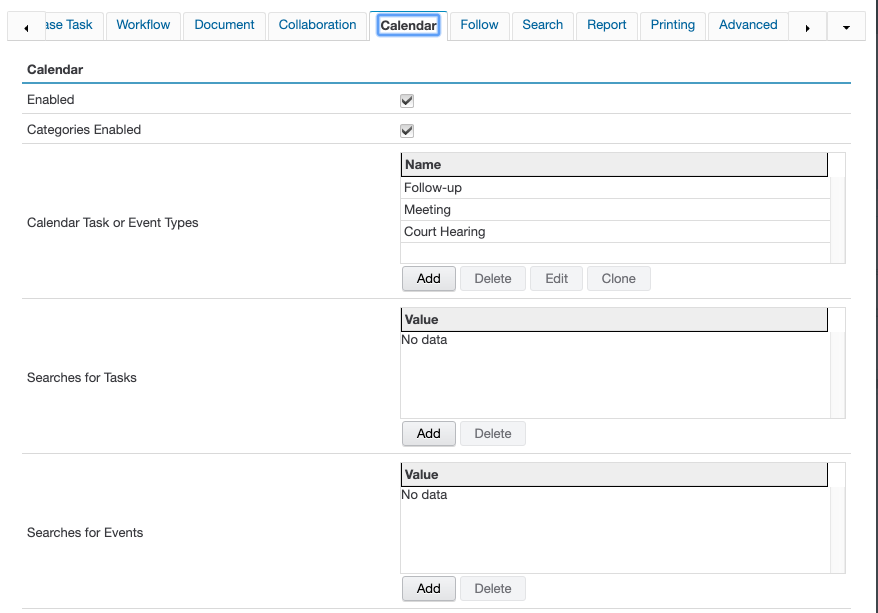
KwikWork allows administrators to customize the calendar event types that end users will be allowed to create in addition to categorizing them and making it easier to locate events on the 'Home' screen. This is configured in the 'Calendar' tab of the KwikWork Configuration Panel. The following is a brief overview on configuring the Calendar functionality.
- Open the KwikWork Configuration Panel for the desktop that is being configured from the layout tab of the 'Administration View' of the desktop by clicking 'KwikWork UX' from the Features. Click the 'Config Panel' then select the Calendar tab.
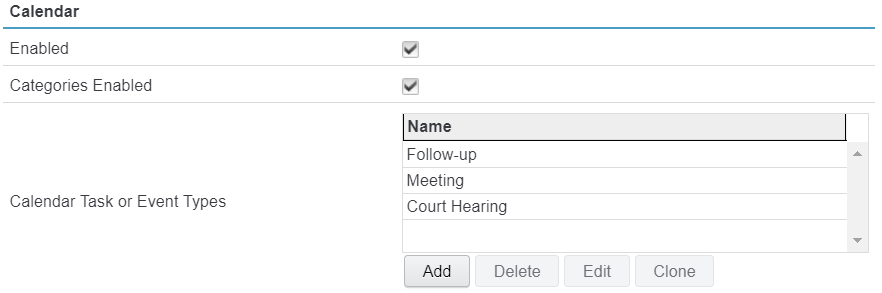
- The 'Categories Enabled' check box determines whether or not users are able to choose categories when creating events.
- In the 'Calendar Task or Event Types' section click the 'Add' button to create a new Calendar Task or Event Type or 'Edit' to update an existing one.
- Specify a 'Name' that will be displayed to the end user when creating a new task or event.
- Select the event type. Tasks or to-do's are reminders that contain an appointed date and time while ScheduledTask contains a start and end date and time.
- Optionally specify the category of the task or event.
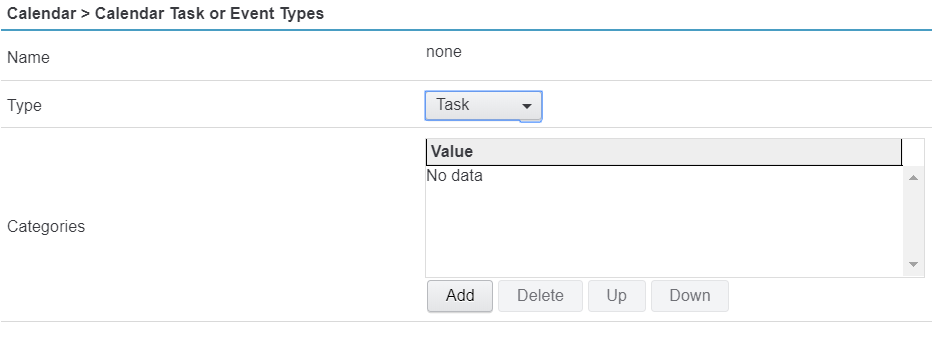
- Finally click the 'Apply' button to save the new task or event.
- Optionally add search templates for Events or Tasks to allow end users to filter tasks or events on the home page based on class type.
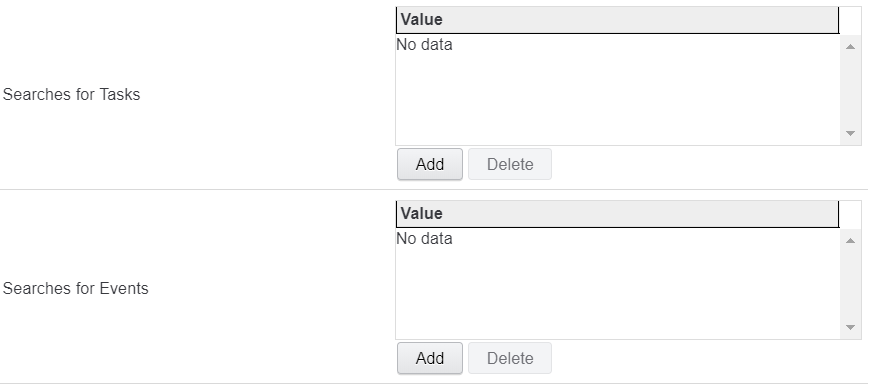
- Finally click the 'Save' button to save the changes to the configuration panel.