Card
Overview
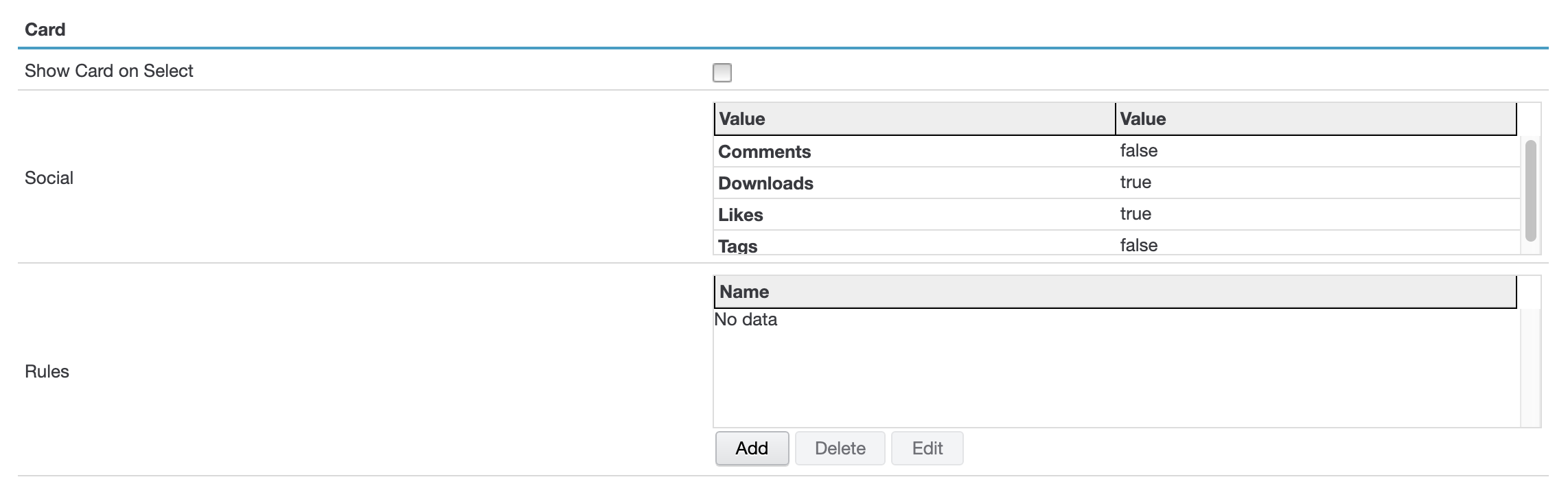
The Card tab in the KwikWork Configuration Panel controls the content that is displayed when a user select a document or case from a search results grid.
Show Card on Select
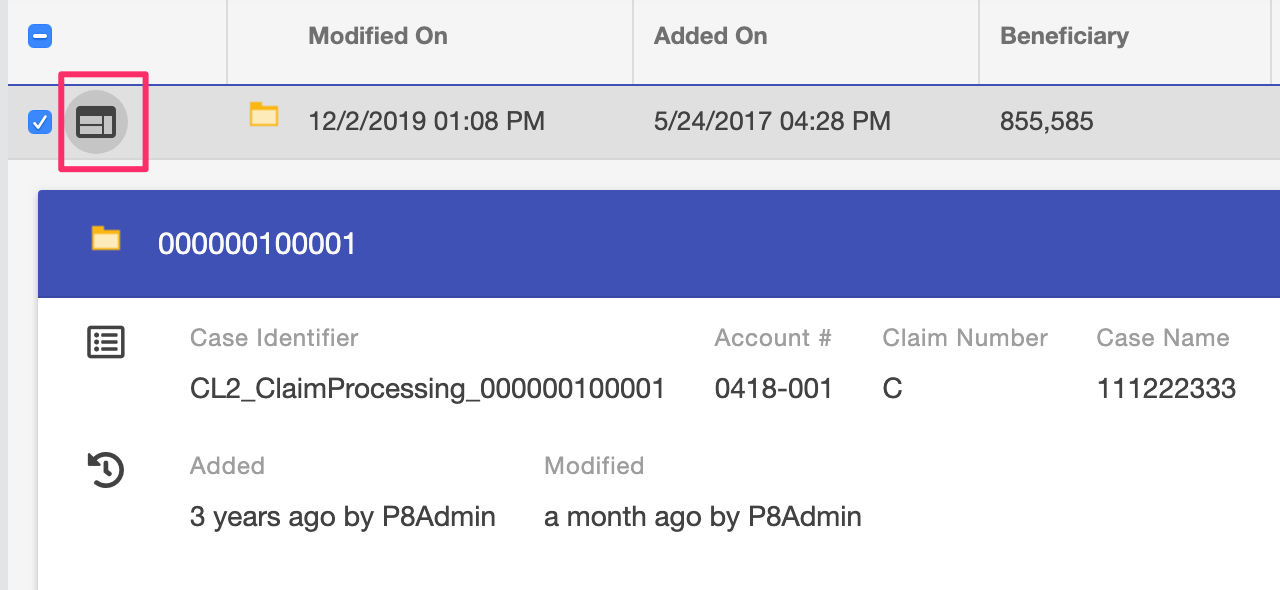
In any search result grid view, card view opens automatically when user clicks on a row. If the option is off, card view will not open. However, grid view will display an icon to allow user to open the card view. see the screenshot below.
Social
In the Social section, the FileNet social features; Downloads, Tags and Likes can be enabled or disabled by double clicking the value field and updating the check box.
Comments
Downloads
Likes
Tags
Rules
Card rules can be created for document and case tasks that control the properties that will be displayed on the card when an item is selected form the search results grid. Rules are configured as follows:
Name
Document class Name
User Properties
Determines the properties to be shown in Card view
Show Static Properties
Shows system properties in the card view.
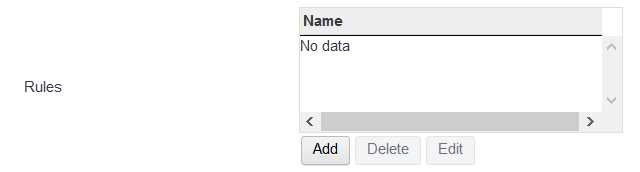
- Click the 'Add' button below the list of rules.
- Select the name of the class for which the rule is being created.
- In the 'User Properties' section, click add then double click the 'new' entry to select the properties that should be displayed in the card view when items of the class are selected in the search results grid. The order in which properties are added dictates the order in which they are display on the card.
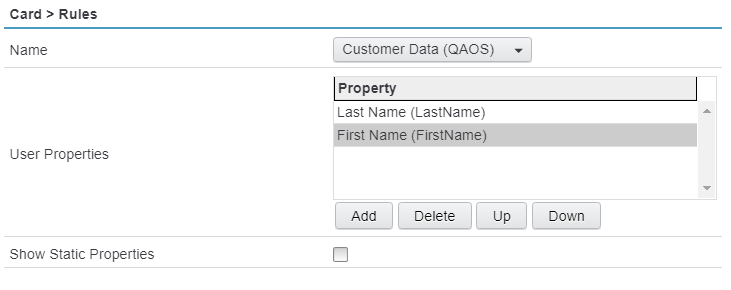
- Use the 'Up' and 'Down' buttons to change the order of properties as necessary.