Install KwikWork Server Extensions
KwikWork Server Extensions extends the functionality of FileNet by allowing customized case identifiers based on the requirements of the business. The following guide is designed to assist administrators in installing the necessary components.
Step 1
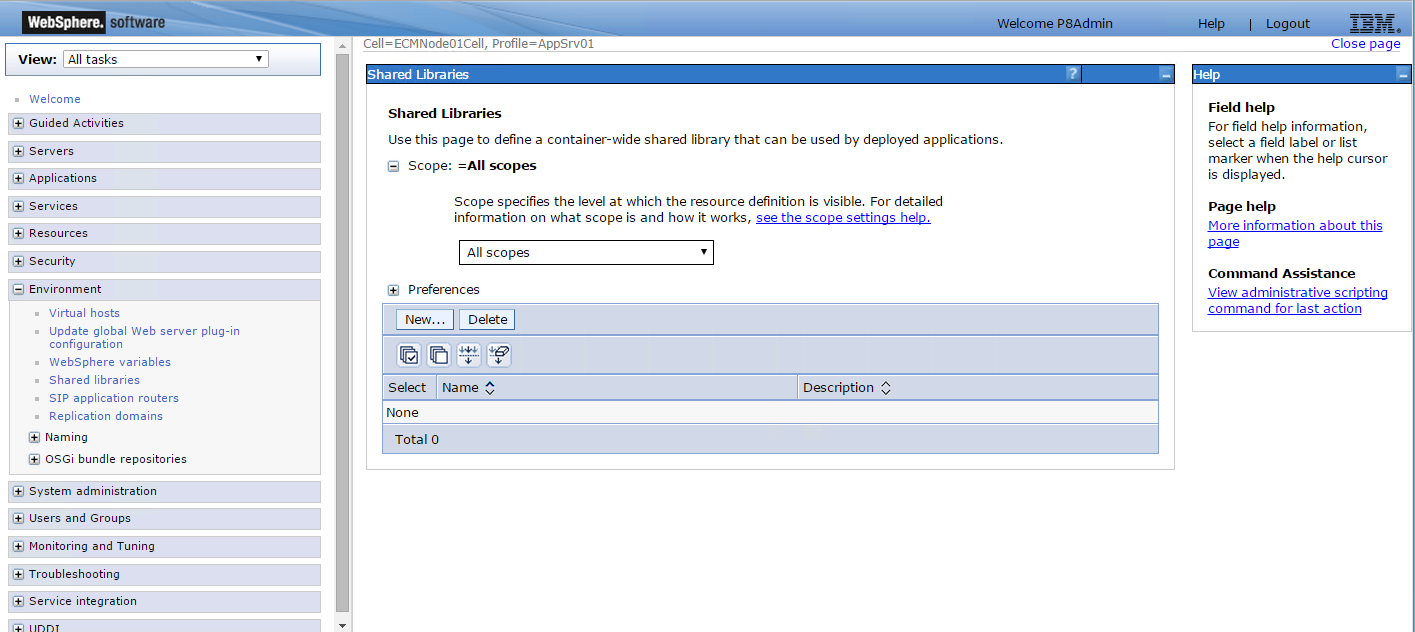
Log into the Websphere Integrated Solutions Console on the application server where IBM FileNet is installed then navigate to Environment → Shared libraries.
Step 2
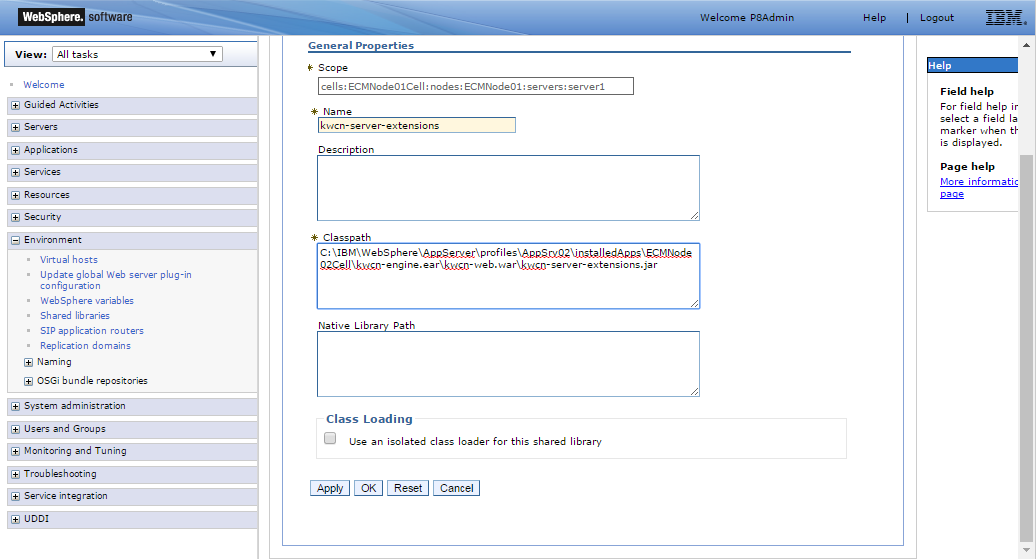
Click 'New' to create a new shared library then give a name to the new library. In the 'Classpath' field enter the path of the kwcn-server-extensions jar file located in the '\kwcn-engine.ear\kwcn-web.war' directory then click the 'OK' button and save directly to the master configuration. NOTE: It is recommended that the kwcn-server-extensions.jar file be copied to a location outside of the kwcn-engine.ear folder so that any configurations made to the kwcn-server-extensions.jar are not lost.
Step 3
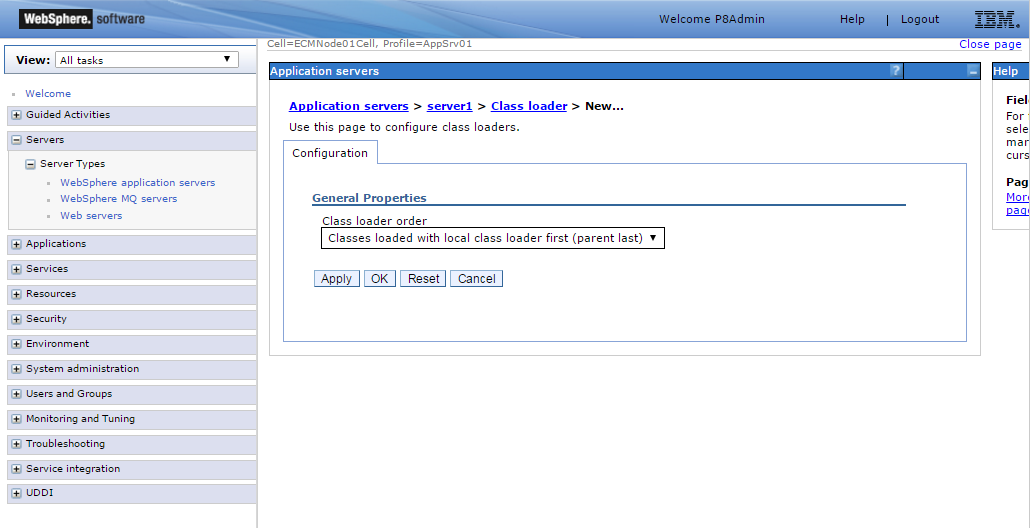
In the Servers section, create a new 'Class loader' under the Server and Process Management section. Specify the Class loader order as 'Classes loaded with local class loader first (parent last)' then click 'OK' and save to the master configuration.
Step 4
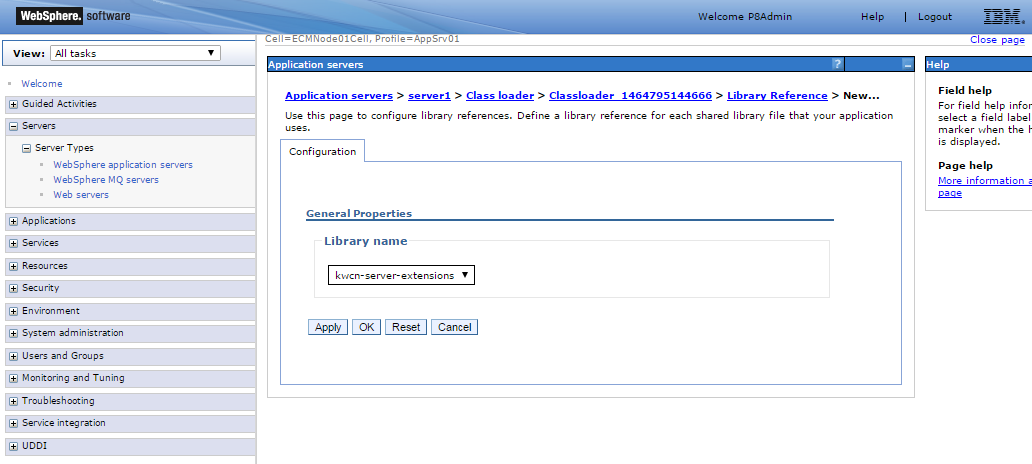
Create a new 'Shared library references' for the newly created class loader to the library class that was created in step 3 above.
Step 5
Finally, restart the WebSphere Application Server.
Step 6
Create a new Event Action in FileNet with the Handler Java Class Name shown below.
com.enchoice.kwcn.serverextensions.CaseNumberingEventHandler |
Step 7
Restart the WebSphere Application Server.
Resources
- IBM FileNet P8 documentation can be located at http://www-01.ibm.com/support/knowledgecenter/SSNW2F_5.2.1/com.ibm.p8toc.doc/welcome_p8.htm
- IBM Content Navigator Documentation can be located at http://www-01.ibm.com/support/knowledgecenter/SSEUEX_2.0.3/contentnavigator_2.0.3.htm
- IBM WebSphere Administration Documentation can be located at http://www.ibm.com/developerworks/websphere/zones/portal/proddoc/