Print and Rendition Service
Overview
KwikWork includes components that generate prints and renditions. Currently, the service will print AutoCAD drawings (DWG, DXF). The diagram below describes the components involved.
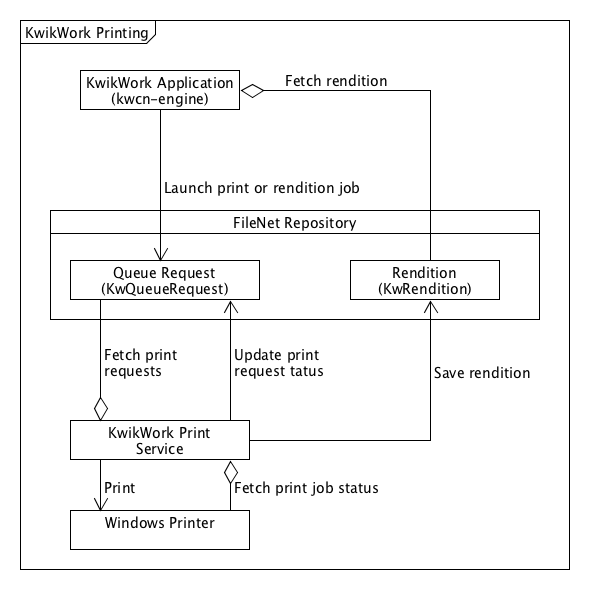
Print Service
The KwikWork Print Service is a Windows application which is meant to run as a service. It shares many common characteristics with the KwikWork Desktop application. In particular, it downloads "compound" documents from the repository using the same folder structure and naming conventions. However, its purpose and mode of action are fundamentally different. It has no user interface. Instead of opening drawings, it creates prints and renditions.
Runtime prerequisites:
- Oracle JDK 1.8.0_112 or above -- make sure that the right JDK is referenced in InstallPrintService.bat (see below)
- AutoCAD 2017
- A Windows distribution supported by AutoCAD 2017
Prepare:
- Copy the "desktop/kwcn-desktop-print-service/target" directory (aka application directory) to the AutoCAD workstation
- On the AutoCAD workstation, launch a Command Prompt and "cd" into the application directory
- Review and adjust the "properties/config.properties" file. Note: If multiple print servers will be used, a corresponding value should be set for the ServiceId
- In KwikWork, execute "Prepare UX Object Store" against the specified object store
Install the Service and Run:
- Review InstallPrintService.bat -- in particular, adjust PR_JVM, PR_ServiceUser and PR_ServicePassword
- To install the service, run: InstallPrintService.bat -i
- Start the "KwikWork Print Service" Windows service
- Review kwcn-print-service.log under: C:\logs
Notes
- The working directory will be: "C:/Users/[your user]/KwikWork" where "your user" maps to the specified service user
- Remove any old/conflicting working directory as appropriate
- To encrypt a password, use jasyph (http://www.jasypt.org/) (ask the KwikWork team for the key and don't share it)
Repository Components
The follow classes are created during installation (see Prepare - Step 4 above).
KwikWork Queue Request (KwQueueRequest)
Name | Type | Description |
| KWServiceId | Integer | Indicates the ID of the print service that will complete the request |
KWSServiceType | String(64) | Indicates the service type this queue request is intended for. For example, “Print”. |
KwQueueName | String(64) | The name of the service queue. AutoCAD script files (.scr) in the Print Service classpath are selected by name based on the KwQueueName value. Currently, those are limited to: PlotToDevice and PlotToPDF. |
KwState | Integer | See KwState choice list. |
KwPriority | Integer | See KwPriority choice list list. |
KwSubmitted_Date | Time | The time when the request is considered to be submitted for processing. This is not necessarily the same as the time the queue request object was created or last modified. Requests are retrieved from the queue for processing when the Submitted time is the current time or earlier. The processing of a request can be delayed by setting the Submitted time to a future time. |
KwOwner | String(64) | The service thread id that is processing the request. A service thread claims ownership of a request by setting the value of Owner to “{ServiceSystemName}_{ThreadId}” and the state to Processing. |
KwDocId | Id | The Id of the document that will be processed. |
| KwSettings | String(1024) | A JSON formatted string that contains the settings specific to this request. If more storage is needed, this could be indicated in the JSON and additional data could be stored in an annotation. |
| KwRenditionId | Id | The Id of the rendition created by the job. This is applicable to rendition jobs. |
| KwStateMsg | String(255) | A message that goes along with the KwState. This is applicable to error conditions. |
KwState Values
Value | Display name | Description |
1 | Ready | The request is ready for processing. |
2 | Suspended | The request is suspended from processing.
A suspended request is ignored by services that process the queue. This is equivalent to pausing a print job that is queued to a printer. |
3 | Processing | The request is being processed by a service. |
4 | Error | The processing of the request failed but retries remain. Error information may be available in the KwStateMsg value. There was problem processing this request. It will be retried until it is successfully processed, or the number of retries left reaches zero. When the number of retries left reaches zero, the state is changed to Failed. |
5 | Failed | The processing of the request failed and it will not be retried. Error information may be available in the KwStateMsg value. There was problem processing this request, and either no retries are allowed or the number of retries left reached zero. |
| 6 | Done | The processing completed successfully. |
Processing Requests
Until the service is stopped, requests are processed in a loop that executes the steps below, so long as requests in the Ready state are found and processed.
When no Ready requests are processed because the queue is empty, the service will pause for a specified wait interval before entering the processing loop again.
- Until X requests in the Ready state are processed, or the queue has no more Ready requests:
- Fetch the next request in ordered by Priority and time (FIFO).
- On a new thread, instantiate a Print Service and dispatch the request.
- Send a print command to AutoCAD
- Wait for completion:
- For a rendition job, wait until AutoCAD is done touching the newly created PDF file. Upload the file in the KwRendition class.
- For a print job, use the Windows api to monitor the print queue for completion of the print job
- If the request processing is successful, set the state to Done.
- If the request processing fails and retries remain, set the state to Error.
- If the request processing fails and retries are not allowed or no retries remain, set the state to Failed.
- Delete the temporary folders and files
Maintenance
Search for all requests in the Done and Failed state that were last modified more than X days ago. Delete them so that they don’t continue to accumulate in the queue.
Search for KwRendition and delete periodically if needed. If KwikWork tries to access a rendition which no longer exist, it will attempt to re-create it.