Collaboration
Overview
KwikWork now includes the ability for users to create Emails, Reminders and Calendar Events which are linked to contacts for both cases and documents. These are displayed in the KwikWork Dashboard if enabled. Users are also able to send calendar invites for tasks that have been created. These are configurable on the Collaboration section of the KwikWork Configuration panel. The Collaboration functionality can be configured as follows.
Features
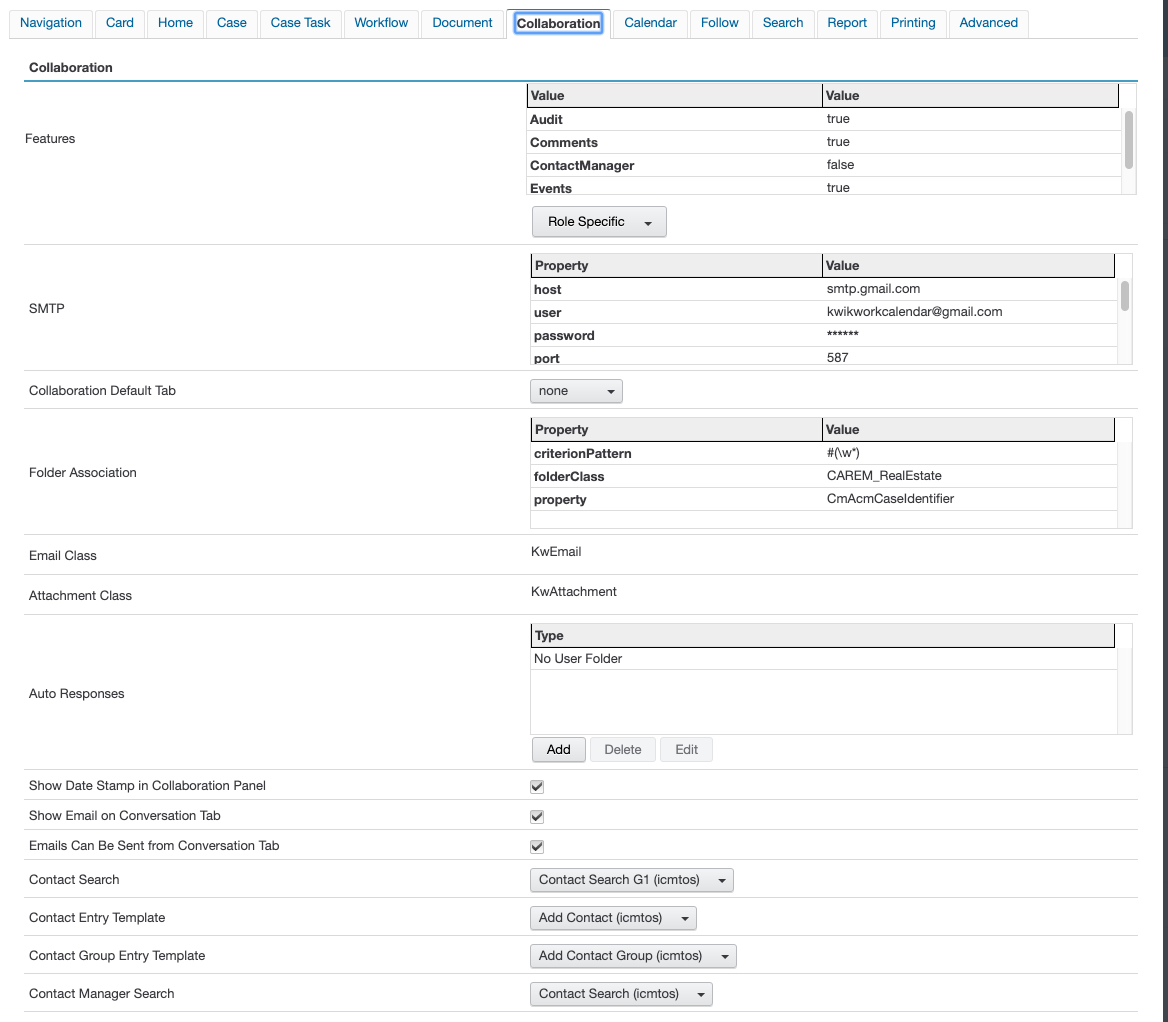
The Features section of the Collaboration tab, allows administrators to activate or deactivate different sections of the Collaboration Panel of the unified view. Emails are sent and are viewed from the comments tab of the unified view, and is therefore also disabled from the Comments features. Optionally create role specific configurations with use of the 'Role Specific' drop down menu.
Available features
- Audit
- Comments
- ContactManager
- Events
- Task
SMTP
In the 'SMTP' section, enter the settings for the mail server that would be used to send emails and calendar invites to contacts that have been linked to a case or document. The port number should be set to the outgoing port for the mail server while the 'socketFactoryPort' should be set to the incoming port of the mail server. In order for users to be able to use this functionality, users are first required to update their KwikWork preferences in the title drawer with a valid email address.

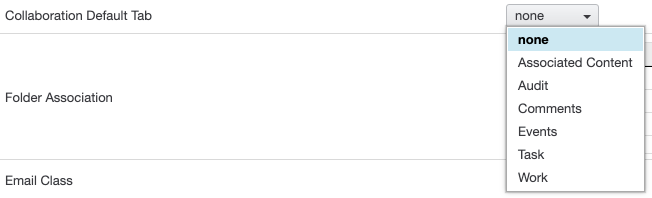
Collaboration Default Tab
Folder Association
Folder Association allows users the ability to send emails to KwilWork that are automatically filed into a case, The 'folderClass' value should be set to the symbolic name of the case class.
Email Class
'Email Class' and 'Attachment Class' are the document classes that KwikWork uses to file emails and attachments that are sent or received by KwikWork which are automatically set to 'KwEmail' and 'KwAttachment' that are added to the repository by the installer. Administrators are able to configure different classes for KwikWork to use per desktop but it is recommended that the email class used should be a sub-class of the packaged 'Email Correspondence' class.
Attachment Class
Auto Responses
If an email is sent by a non KwikWork user to the KwikWork monitored mailbox that does not contain a reference to a case in the subject and is not part of an existing email thread then the email is automatically rejected. The 'Auto Responses' setting, allows administrators to set a customized message that will be sent to sender of the email.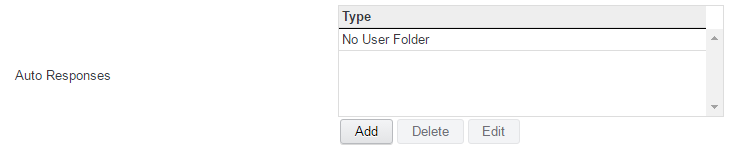
Show Date Stamp in Collaboration Panel
KwikWork can display the exact date and time of content in the collaboration panel or the time that has elapsed since it was created by selecting the 'Show Date Stamp in Collaboration Panel' check box.
Show Email on Conversation Tab
It is possible to decide whether emails can be sent or shown in the collaboration. by using the corresponding check boxes.
Emails Can Be Sent from Conversation Tab

Contact Search
Select a search template that will be used to display contacts and an entry template to create new ones when sending emails or creating calendar events.
Contact Entry Template
Contact Group Entry Template
Optionally specify a Contact Group entry template. The 'Contact Groups' functionality allows the bundling of contacts to make it easier to send emails to or create calendar events for multiple contacts at the same time. This feature requires that compound association is enabled for the 'Contact Group' document class in Filenet P8.
Contact Manager Search
If the 'Contact Manager' feature is enabled, select the search template that will be used to display contacts and contact groups in the KwikWork Contact Manager.