Home
Overview
Default Feature
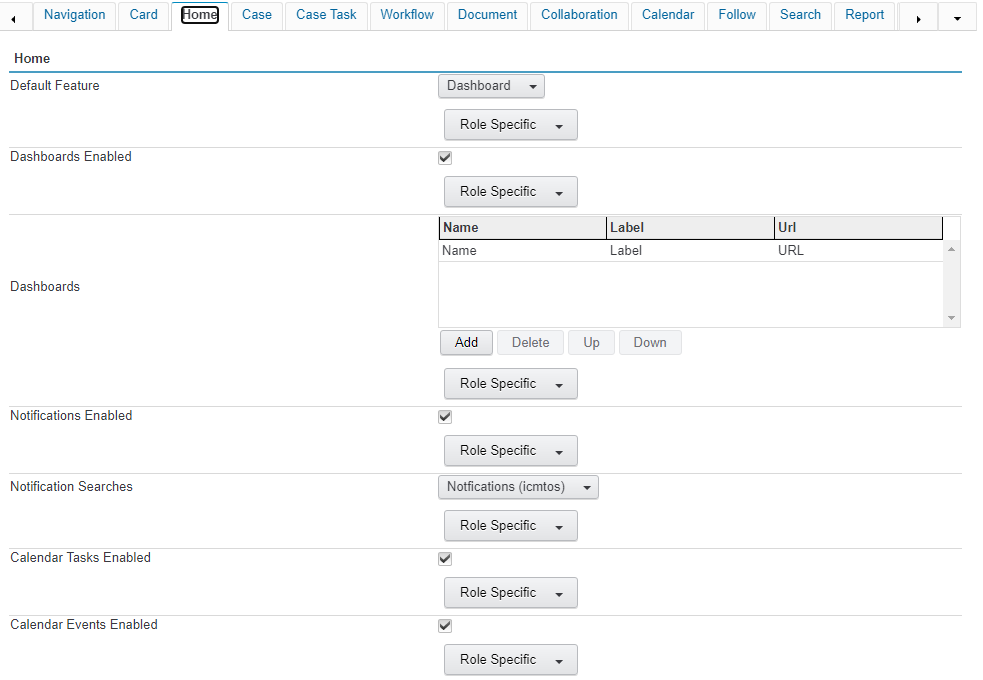
The 'Home' tab allows administrators to configure which features will be available to end users on the Home screen if the home feature has been enabled in the 'Navigation' tab of the KwikWork configuration panel. These configurations can be configured to vary depending on the primary role of the user configured in the KwikWork Preferences in the KwikWork UX. The administrator must first select the 'Default' feature from the drop down. Note if the feature selected as default isn't activated, then no feature would be selected.

Dashboard Enabled
Enable dashboard defined in Dashboard setting.
Dashboard
The 'Dashboard' functionality allows administrators to set data from a URL to be automatically loaded when the KwikWork 'Home' screen is enabled. This feature is configured as follows:
- Enable the 'Dashboard' feature by checking the 'Dashboard Enabled' check box.
- Click the 'Add' button in the 'Dashboards' section to add a new dashboard to KwikWork.
- Double click the name property then set a name for the dashboard.
- Set a 'Label' for the dashboard which would be visible to the end user when the log into KwikWork.
- Finally Enter the URL of the Dashboard.
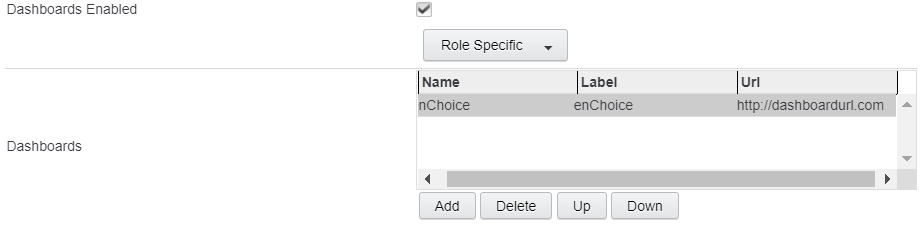
- Optionally create 'Role Specific' configurations using the 'Role Specific' menu in the dashboards section of the KwikWork Configuration Panel.
Notifications Enabled
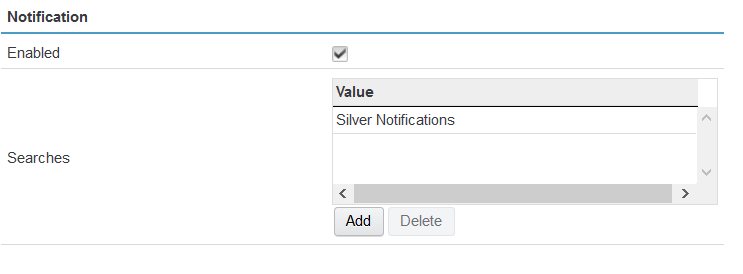
Enable notification for the home page.
Notifications Searches
The notification searches settings controls the notifications that are displayed on the home page when a user logs into KwikWork. It uses a search template to display changes that have been made for the life of the system or over a specific period of time. When the search template that is being used for notifications is being created, the 'Results Display' is used to choose which document properties will be tracked and allows KwikWork to provide user with detailed information on which properties were changed. The feature is enabled by selecting the search template from the 'Notification Searches' parameter in the configuration panel. The feature initially takes a baseline of the documents in the repository based on the parameters of the notifications search template which KwikWork uses to find any changes. Therefore, if an existing document is not part of the initial search, it would show as new in the notifications dashboard after it has been updated. Administrators should take this into consideration creating the search template to avoid any confusion of the end user. Additionally, this should NOT be a broad search of the repository or of all versions. Instead specific document classes and current or released versions should be used when the template is created. Notifications can be disabled by unchecking the 'Enabled' check box. Note: The configured search for notifications should not be set to include "all versions"
Calendar Tasks Enabled
Calendar Events Enabled
The 'Calendar Tasks Enable' and 'Calendar Events Enable' allows the administrator to control whether Calendar Tasks and Events will be available from the KwikWork Home. These can optionally be enabled and disabled for specific roles.

How to Configure Colors
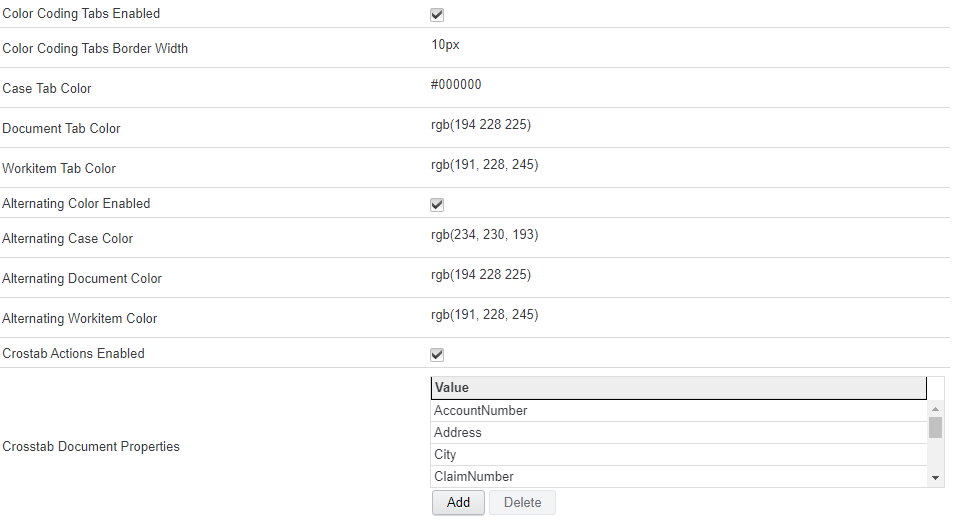
You can use RGB format or Hex Color Code to specify colors. A color code in RGB or HEX code are the same. i.e. rgb(165, 42, 42) is #A52A2A
https://www.rapidtables.com/web/color/RGB_Color.html
Color Color Coding Tabs Enabled
Color Coding Tabs Border Width
Case Tab Color
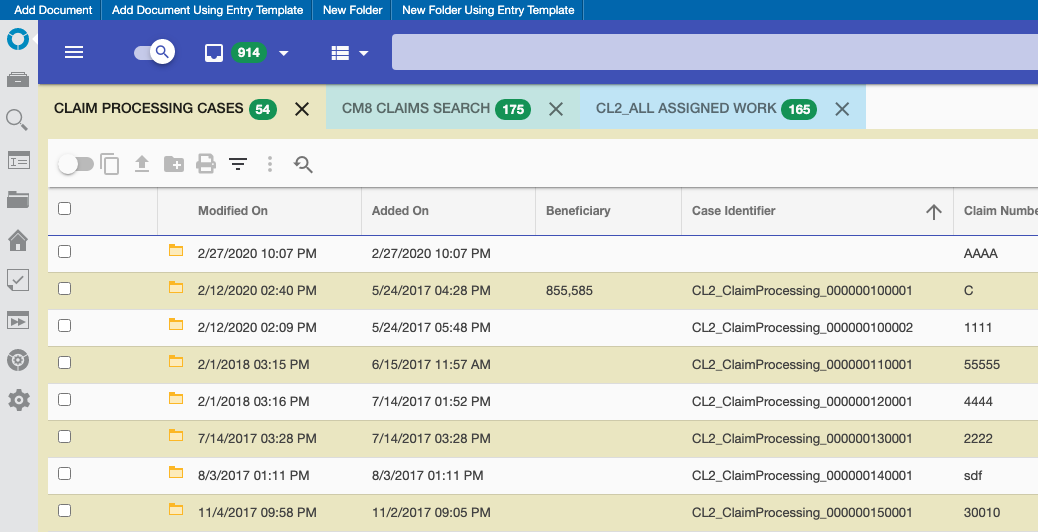
Document Tab Color
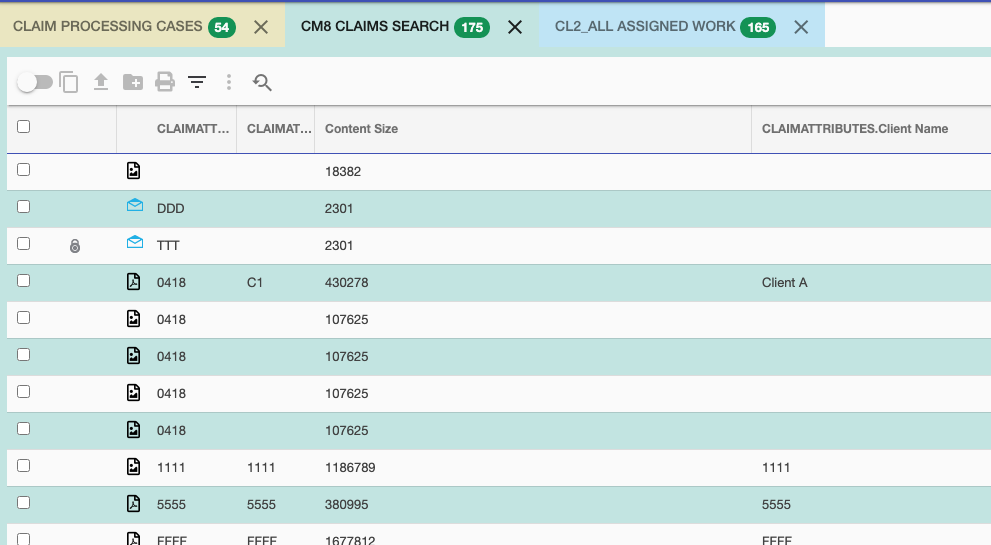
Workitem Tab Color
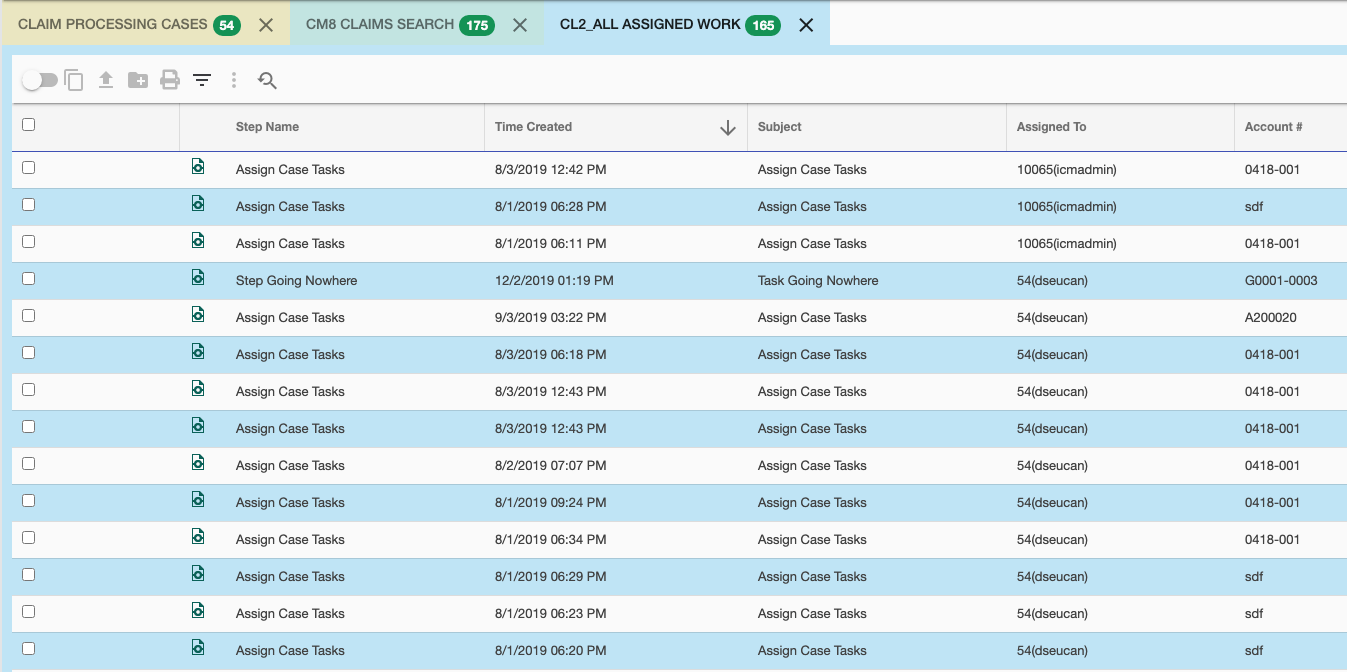
Alternating Color Enabled
Alternating Case Tab Color
Alternating Document Tab Color
Alternating Workitem Tab Color
Crosstab Actions Enabled
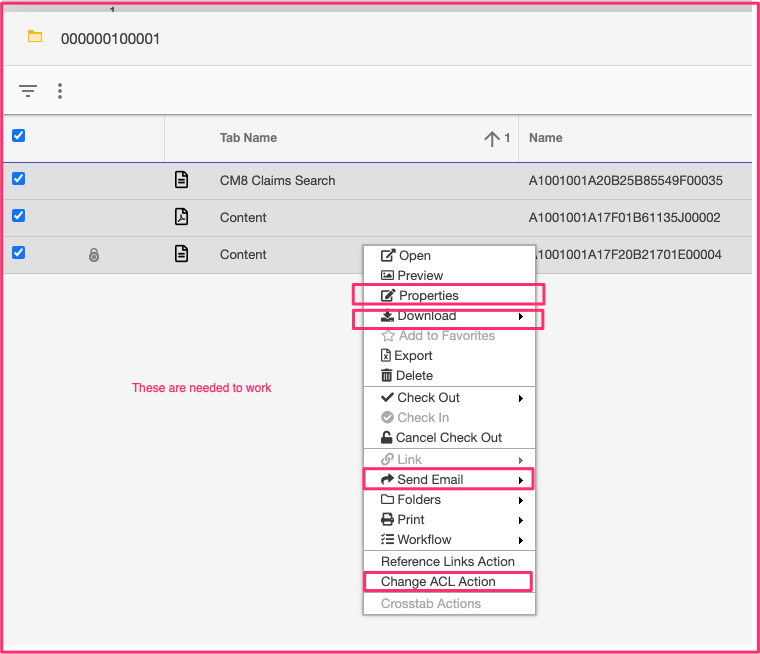
Crosstab Actions allows user to perform actions on selected documents from different unified view tabs. It opens a dialog with selected documents so user can select them and action on them. The crosstab actions dialog contains Tab name along with document properties configured. All document properties should exist in all documents selected.
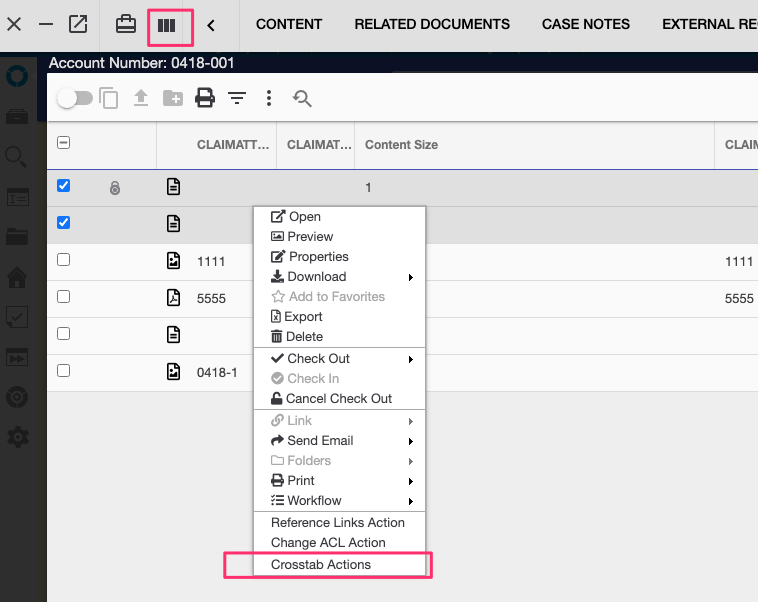
Crosstab Document Properties
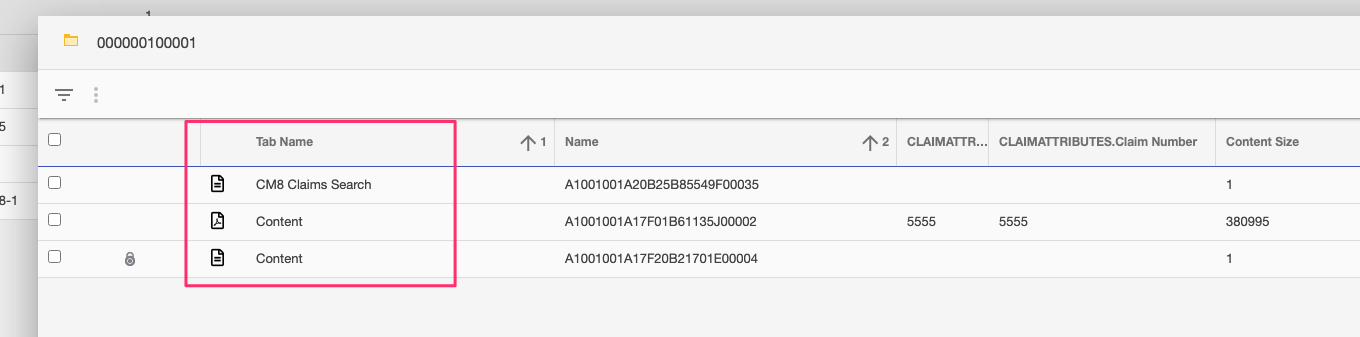
Below is an example of Crosstab Actions dialog. All the functions enabled in the context menu of the document list are enable but only the following are supported.
- Properties
- Download
- Send Email
- Change ACL Action (if configured)