Installing KwikWork CADViewer
The following steps are required to install KwikWork CADViewer.
Overview
There are four components for creating SVG renditions and displaying SVG file types.
- KwikWork DWG Caching Service - A Windows only background service responsible for
- Downloads the DWG files to the conversion server
- Executes the CADViewer conversion process
- Uploads the SVG rendition back to the FileNet custom KwRendition class
- Updates the request to completed
- CADViewer- Third party software from TaylorMade Software bundled as cadviewer.zip
- The CADViewer component can be installed on the application WebSphere instance or on a remote server, however, CADViewer can only be installed on Windows or Linux.
- CADViewer Converter - Linux or Windows server application that converts DWG files to SVG files
- CADViewer JSViewer - Viewer for displaying SVG files
- KwikWork CADViewer - FileNet Viewer Plugin that acts as a wrapper for CADViewer
- Downloads the SVG files to the server
- Redirect the iFrame to CADViewer for display
- Sweeps Process:
- FileNet Sweep process searches the object store for DWG files and executes the KW DWG Sweeps Code Module
- KW DWG Sweeps Code Module creates "request" records in the custom class KwQueueRequest of documents that are queued to be rendered to SVG
Install KwikWork DWG Caching Service
This is a Windows only service.
- Copy "KW DWG Caching Service.zip" to the server
- Copy to any location (i.e. c:\IBM\) and unzip
- Edit <location>/properties/config.properties
Note: if previously installed, the config.properties file was copied to <user home>/KwikWork/ directory. This file in the user home location can be modified or can be renamed/deleted and the file will be copied again to the user home location.- Set the URI value to the FileNet server whose object store contains the DWG files for conversion
- Set the object store ID
- Set user ID
- Set password - password must be encrypted using jasyph (http://www.jasypt.org) with key from zip file's readme.txt
- Set localPathToDWGFile which is the temporary working directory
- Set serviceId, default is 9 for DWG Cache. The serviceId enables multiple rendition types for the same repository. If the DWG service Id is changed, it must be changed in the desktop's configuration. Configuration - Advanced - DWG Conversion Service ID
- Edit <location>InstallDWGCacheService(32 or 64).bat
- Set the PR_JVM to your installed JVM
- Open a command prompt to the directory and run "InstallDWGCacheService64.bat -i" (or 32 for 32 bit processor)
- Start the service in Windows Services and set to auto start
- A log file will be generated at c:\logs (this can be set in the <location>/log4j.xml)
- If you have any issues with the service running:
- Verify your JVM path is set correctly in InstallDWGCacheService64.bat
- Verify the JVM version is at least 1.8.0_112 or greater
- Verify your permissions or reinstall using administrator. If you have appropriate permissions, the following key will have 4 folders in regedit:
HKEY_LOCAL_MACHINE\SOFTWARE\Wow6432Node\Apache Software Foundation\Procrun 2.0\KwikWorkDWGCacheService64\Parameters\
Install CADViewer
CADViewer can be installed on the same WebSphere server or on a remote server (Windows or Linux only).
Same Server Configuration
- In WebSphere:
- Navigate to Applications, Enterprise Applications, Add new application: cadviewer.war
- cadviewer_war should now show in Enterprise Applications.
- Navigate to Environment, Shared Libraries, Add New:
- Select server scope
- Name: cadviewer
- Classpath: path to <WebSphere AppServer filepath>\cadviewer_war.ear\cadviewer.war\WEB-INF\classes
(i.e.: C:\IBM\WebSphere\AppServer\profiles\AppSrv02\installedApps\ECMNode02Cell\cadviewer_war.ear\cadviewer.war\WEB-INF\classes) - Apply and Save
- Navigate to Applications, Enterprise Applications, Navigator Application, References, Shared library references, navigator module, add cadviewer and save.
- Navigate to Applications, Enterprise Applications, Add new application: cadviewer.war
- See Configure CADViewer Instructions below
- Setup up recurring task to delete temporary DWG files stored for rendering to SVG
- On AIX / Linux:
- Edit crontab to run every 30 min to find files that are 30 mins old and delete the folder and files:
- Verify your IBM install path exists: /opt/IBM/kwcn/cache/ - update line 4 as needed to correct path to IBM install as defined in KwikWorkViewer-<date>.jar/viewer.properties - localPathToDWGFile.
- From terminal: crontab -e [username]
- Type "i" to insert
- Paste: 0,30 * * * * find /opt/IBM/kwcn/cache/dwg/* -mmin +30 -exec rm -r {} \;
- Esc, ":x" to save
- On Windows:
- In the KW Viewer zip, locate the "removeDWGFiles.bat".
- Edit the file so that the 2 path locations match the KwikWorkViewer-<date>.jar/viewer.properties - localPathToDWGFile
- Setup a recurring nightly task to execute the .bat file.
- On AIX / Linux:
Remote Server Configuration
- On the remote server, install and configure a SFTP program such as OpenSSH for Windows https://github.com/PowerShell/Win32-OpenSSH/wiki/Install-Win32-OpenSSH
- Set the SFTP service to start automatically
- Create or use a user with permissions to read/write to use with the SFTP processes.
- If installing the CADViewer component on WebSphere:
- Navigate to Applications, Enterprise Applications, Add new application: cadviewer.war
- cadviewer_war should now show in Enterprise Applications
- Set the context path: Enterprise Applications > cadviewer_war > Context Root For Web Modules set to "/cadviewer"
- Navigate to Applications, Enterprise Applications, Add new application: cadviewer.war
- If installing on Apache Tomcat:
- The configuration files were preconfigured for C:\tomcat as tomcat_home
- Copy the WAR file to the <tomcat home>/webapps/ directory and start the tomcat service.
- Configure the CADViewer Component - see Configure CADViewer instructions below.
- Set up the tomcat engine as a service and auto start by following instructions in the tomcat/bin/service.bat file.
Configure CADViewer
- If WebSphere, navigate on the server to <appserver filepath>\cadviewer_war.ear\cadviewer.war\
If Tomcat, navigate to <tomcat home>/webapps/cadviewer/ - Edit cvjs_config_servlets.xml, search and replace the following values:
- If WebSphere:
- http://ecm.devenchoice.org:9081/ with your URL
- C:/IBM/WebSphere/AppServer/profiles/AppSrv02/installedApps/ECMNode02Cell/ with your path.
- If Tomcat:
- http://ecm.devenchoice.org:9081/ with your URL
- C:/tomcat/webapps/cadviewer with your path
- If WebSphere:
- If running Linux, the path to the converter must be changed from windows to linux:
- Search and replace cadviewer.war/converters/ax2019/windows/ with cadviewer.war/converters/ax2019/linux/
- Change:
<init-param>
<param-name>ax2019_executable</param-name>
<param-value>AX2019</param-value>
</init-param>
To:
<init-param>
<param-name>ax2019_executable</param-name>
<param-value>ax2019_L64_19_04_16</param-value>
</init-param>
- Optionaly, to change the encryption key, navigate to <webapp>\<cadviewer>\html\fileviewer.jsp and edit "secretKey" to a unique 16 character value and save the file.
- The secretKey must match the KwikWork Viewer viewer.properties secretKey
- Reset the web service
Install KwikWork Viewer Plugin
- Open the KWCN-DWG-Viewer-<date>.jar file with a zip utility
- Edit viewer.properties as needed to match the server settings and save.
- The secretKey must match CADViewer fileviewer.jsp secretKey and must be 16 characters.
- Save the Jar file
- Log into KwikWork Content Navigator Portal, Administration View Settings, Plug-ins:
- Add the new plugin: KwikWorkViewer-<date>.jar and save
- Viewer Maps, Edit the KWCN Viewer Map
- Add new mapping:
- For Repository select "FileNet Content Manager"
- For viewer select KwikWorkViewer
- In New File Types, manually add the following:
dwg
application/dwg
model/vnd.dwf
application/acad
image/vnd.dwg
svg
image/svg+xml - Click OK
- Move this mapping up to the top of the list
- Save
Create FileNet ACCE Sweeps Process
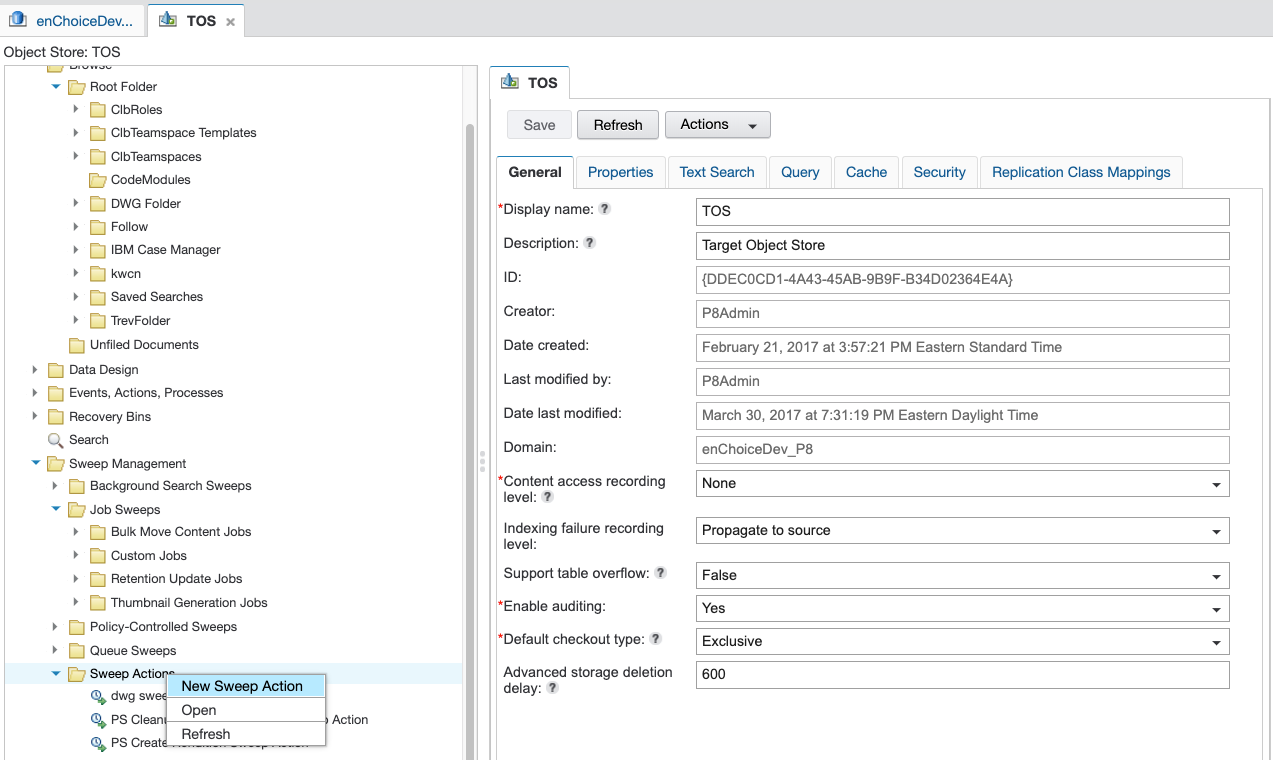
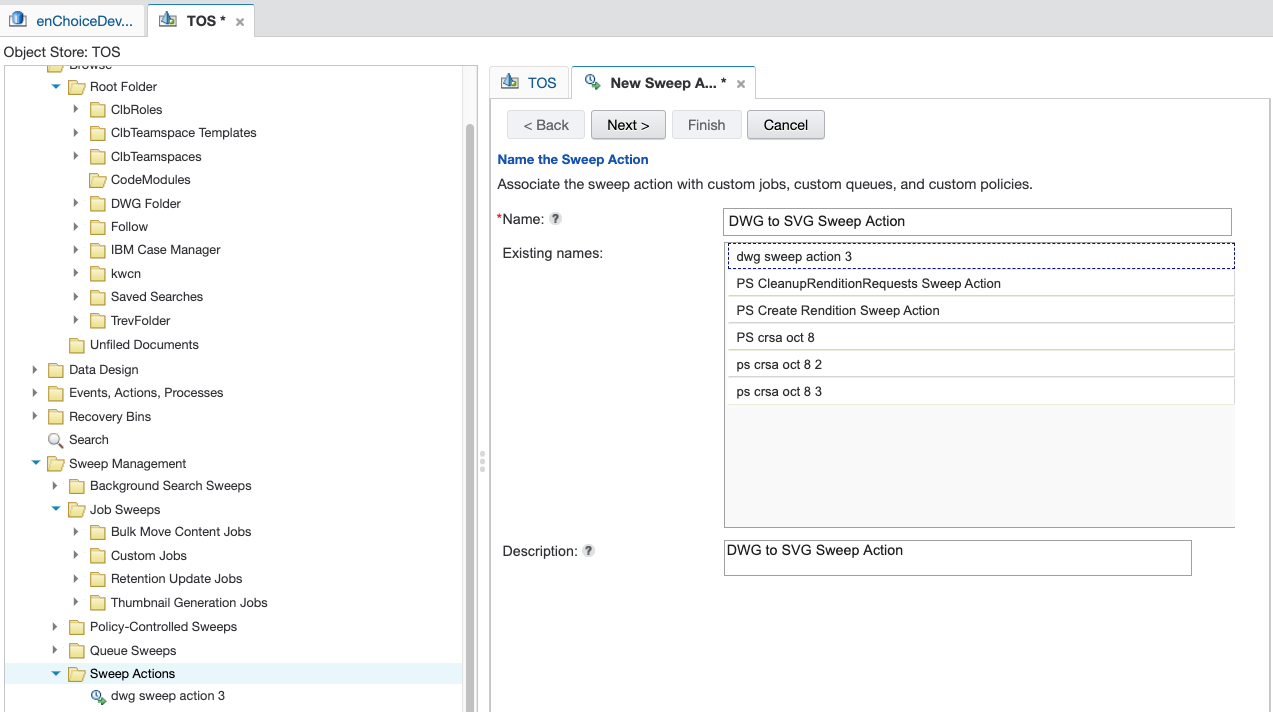
Navigate to Sweep Management - Sweep Actions - New Sweep Action
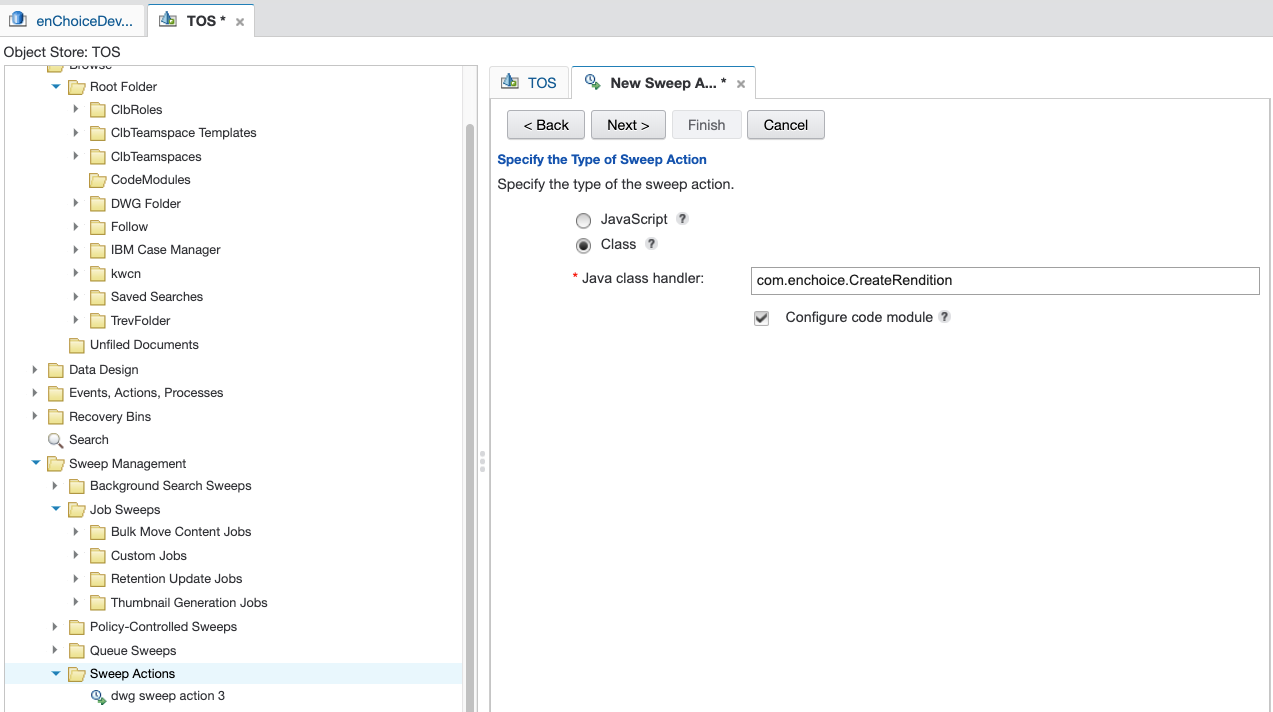
Set Java class handler to com.enchoice.CreateRendition and check Configure code module
- Check "Configure code module"
Name the code module and import the KWCN Create Rendition Sweeps Jar file
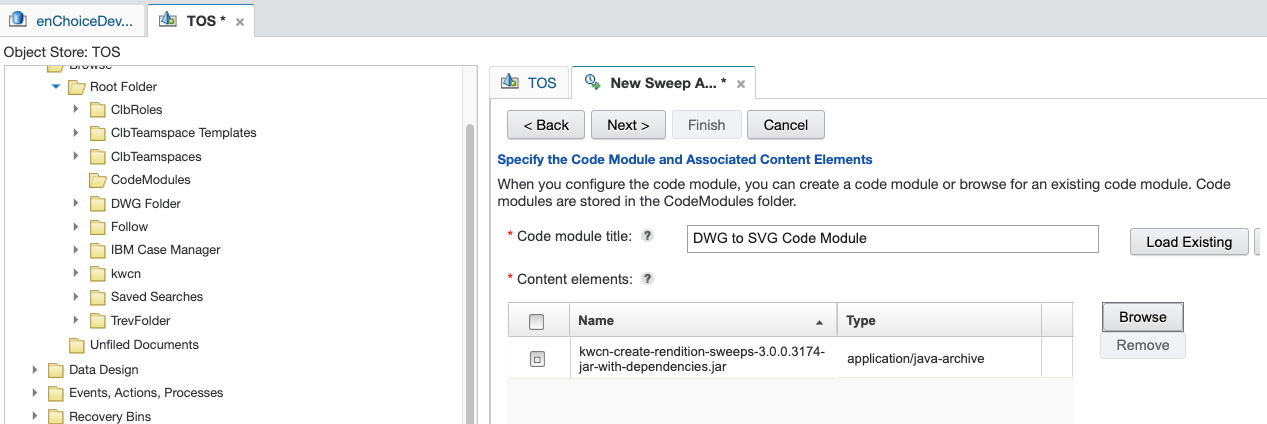
Move Next and Finish
Next, create a Job Sweep - Custom Job for a one time sweep, or to continuously run, create a Sweep Policy.
A filter expression is required, at a minimum the sweep process needs MimeType = ‘application/dwg’. Other filters can be added such as modifiedDate.
Set the sweep action to the sweep action created in the previous steps.
Resetting Renditions
In the event all SVG renditions need to be recreated, the rendition requests and SVG renditions need to be deleted first.
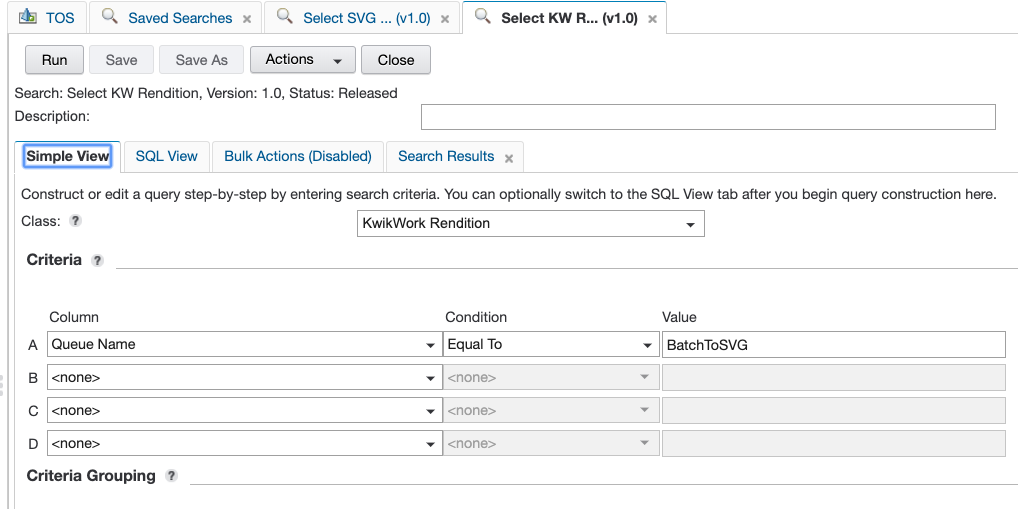
- In ACCE, search the KwikWork Service Queue Request class where Queue Name equals 'BatchToSVG' and delete the records.
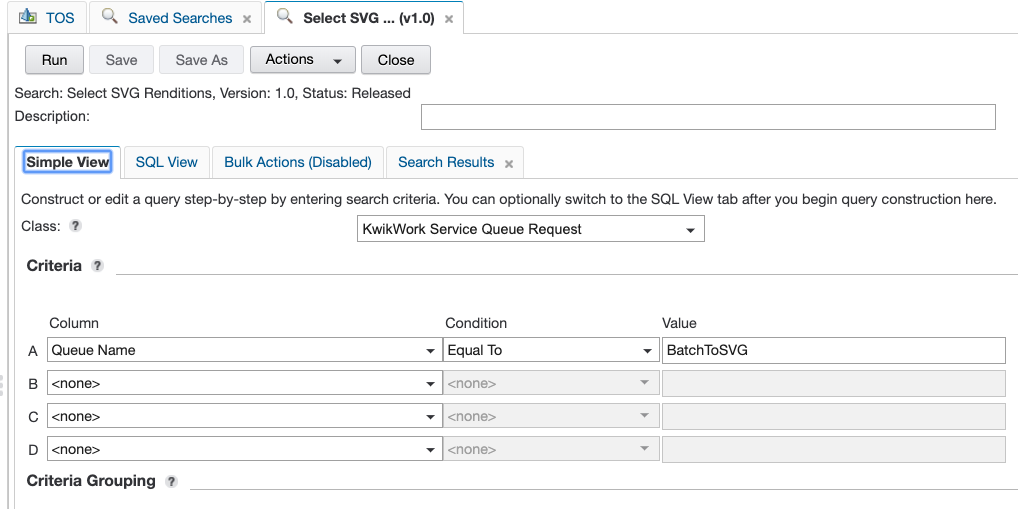
- Search the KwikWork Rendition class where Queue Name equals BatchToSVG and delete the records.