Configuring KwikWork External Integrator
Configure IBM External Data Service Support
The KwikWork External Integrator leverages the the functionality of the IBM External Data Service Support plug-in to provide user with the ability to access documents without the need to log in. In order to use the functionality of the KwikWork External Integrator, the External Data Service URL must be updated to '/kwcn-web'.
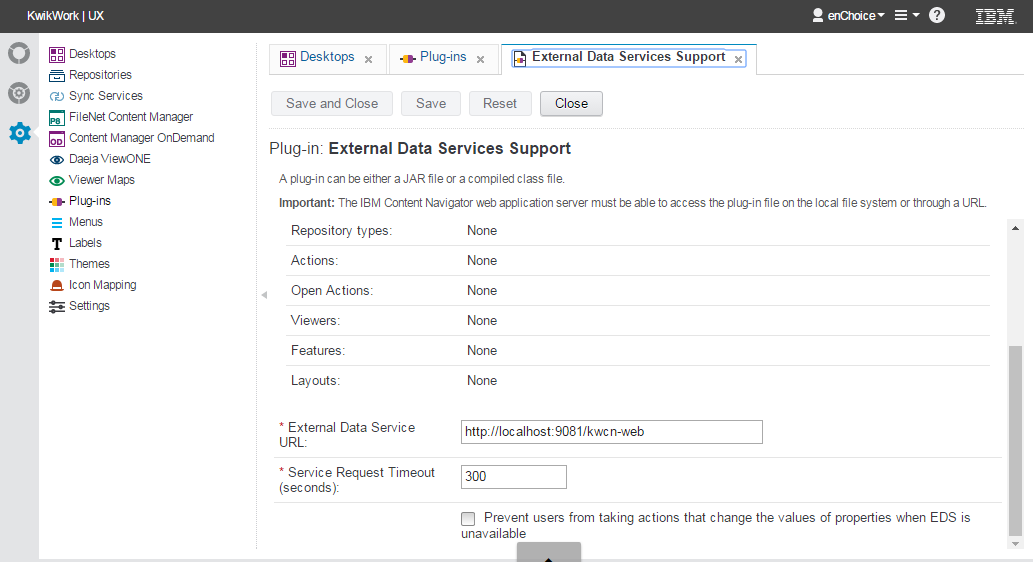
Configuring KwikWork External Access Integrator
The KwikWork External Access Integrator web application allows users to be automatically authenticated and use KwikWork using an external URL without the need to enter a username or password. The following instructions provide a guide to configuring this functionality.
Step 1 - Add KwikWork External Access Integrator Feature
The KwikWork External Access Integrator functionality is provided through the KwikWork External Access Integrator layout feature which must be added to an existing desktop using the following steps. It is recommended that the KwikWork External Access Integrator feature be on a separate desktop with no other features activated.
- Navigate to the Administrator View using the Content Navigator vertical navigation bar.
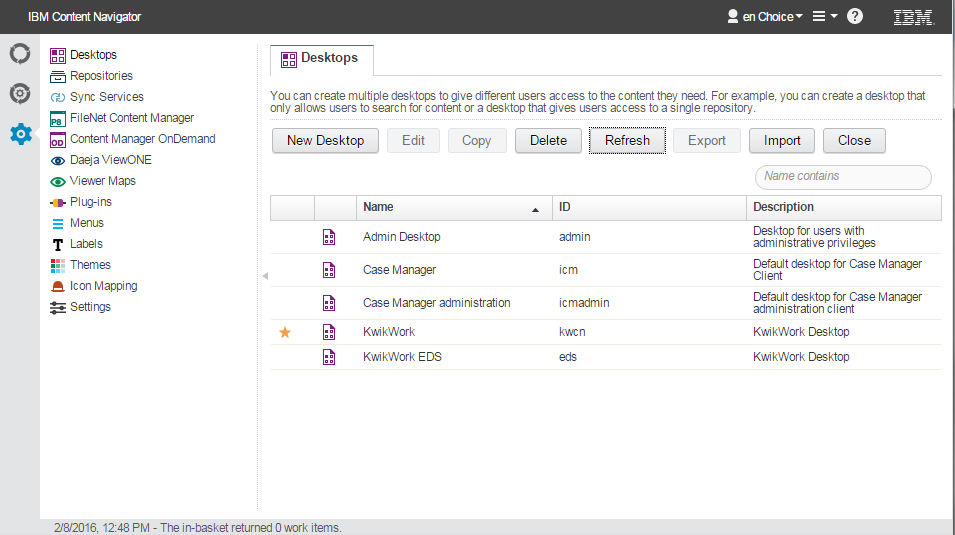
- Edit an existing desktop or create a new desktop and then navigate to the layout tab.
- Check the box next to the KwikWork External Access Integrator feature then click save and close.
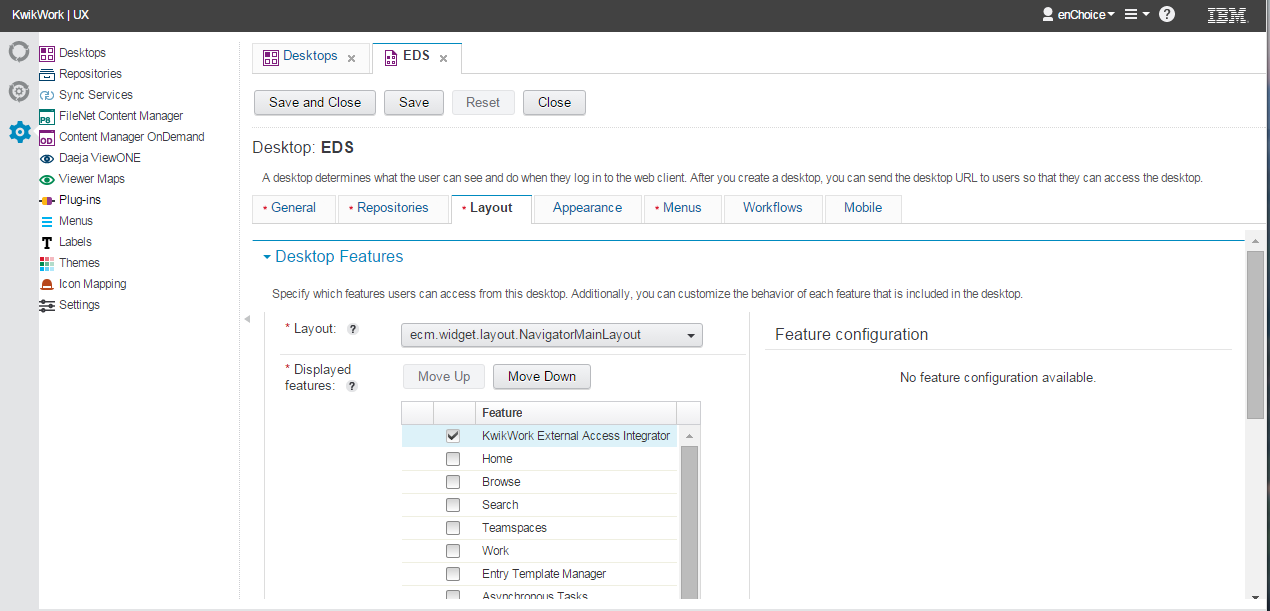
Step 2 - Add KwikWork Integrator Feature
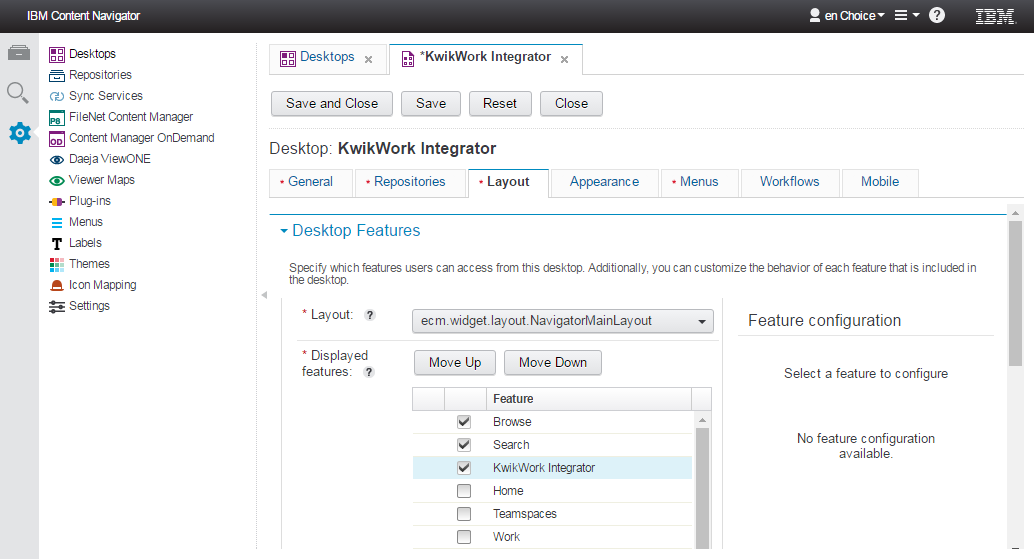
External Access using the KwikWork External Access Integrator functionality is configured using KwikWork Integrator configuration panel. The KwikWork Integrator feature must be added to a desktop that will be used to configure the KwikWork External Access Integrator functionality using the following steps.
- Navigate to the Administrator View using the Content Navigator vertical navigation bar.
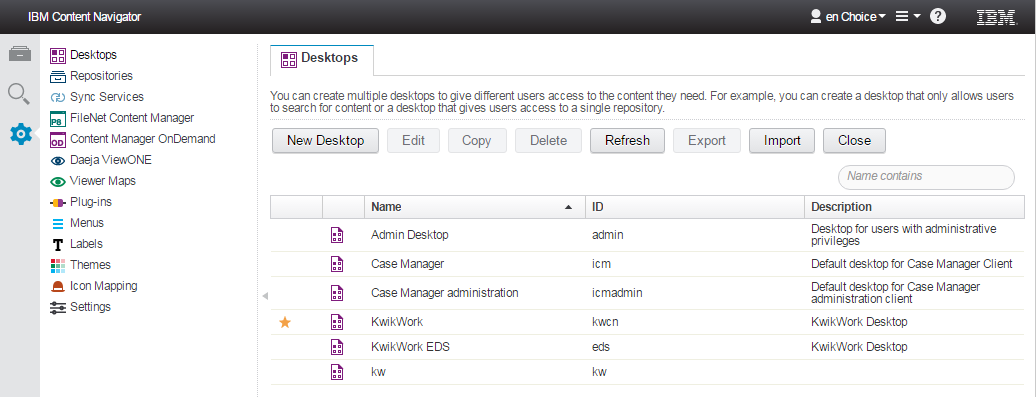
- Edit an existing desktop or create a new desktop and then navigate to the layout tab.
- Check the box next to the KwikWork Integrator feature then click save and close.
Step 3 - Configure Roles
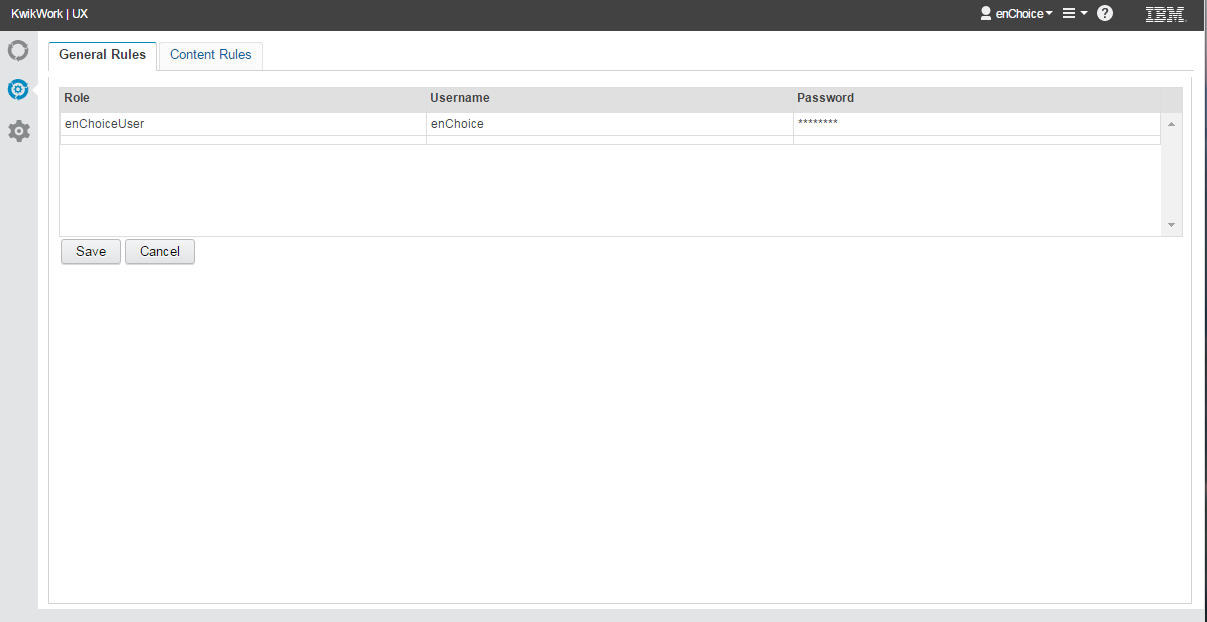
Roles need to be created in order for users to have access to KwikWork from an external URL. This is done in the KwikWork Integrator configuration panel as follows.
- Navigate to the KwikWork Integrator navigator panel by clicking on the KwikWork Integrator icon in the vertical navigation bar.
- In the general rules tab, enter a role name and a valid username and password for a user that has access to the desktop where the KwikWork External Access Integrator is configured.
- Click the 'Save' button to save the role.
- Steps two and three can be repeated for as many roles as needed.
External URL
The external URL automatically logs user in and opens the first document in the search results. This feature is only compatible with documents.
[ICN URL]/?desktop=eds&roleName=test&feature=kwcnExternalAccessFeature&sideChrome=0&searchId={Search
GUID}&"Optional Search Criterion"
| Parameter | Description |
|---|---|
| ICN URL | This is the URL which is used to access IBM Content Navigator including port number |
| desktop | Specify the desktop where the KwikWork External Access Integrator is configured |
| roleName | Name of role created in KwikWork Integrator Configuration panel |
| SearchID | Specify the GUID of the search template of the document class that users will be accessing. |
| Optional Search Criteria | Optionally, search results can be filtered based on one of the properties of the document class eg. companyName = "enChoice" |
| sideChrome | Determines whether the ICN vertical navigation is present. This value is set to '0' so that the vertical navigation bar is not displayed when the external access URL: is used |
| feature | This is set to 'kwcnExternalAccessFeature' to invoke the KwikWork External Access Integrator feature that was added to the desktop. |