Configuring Rules
KwikWork Integrator allows users to access and utilize data from external systems in work items, search and entry templates to add, update or search for documents and folders by creating choice lists using the external data. It achieves this through content rules that are used to query an external data source, then maps that data to properties in a class or template. In order to enable users access to these functionalities, administrators must first configure mapping rules in the Rules tab of the Integration Configuration Panel. The mappings that can be configured in the KwikWork Integrator configuration panel are:
- Function Mappings - KwikWork Integrator is also able to add a unique identifier to properties of documents and cases when they are created.
- Data Source Mappings - These rules allow data from databases and REST services to be available to the end user when they creating, updating or searching for content. Before these mappings can be configured, REST or database sources must first be created.
Adding Content Rules
- Navigate to the KwikWork Integrator feature by clicking on the KwikWork Integrator icon in the vertical navigation bar.

- Select the Content Rules tab then select the document or folder class to use external data.
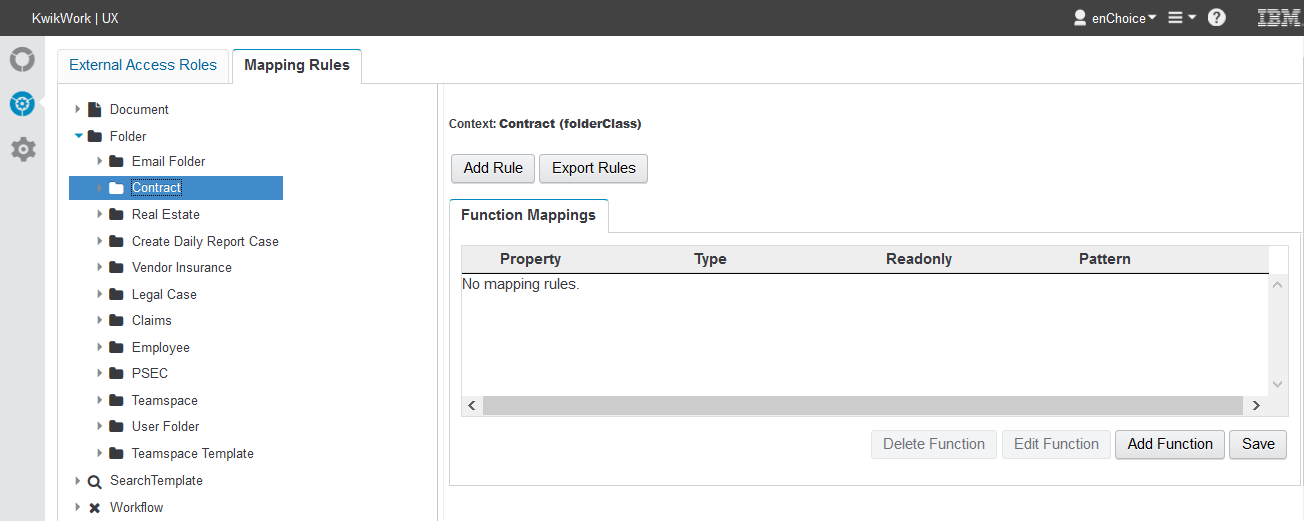
- Click the 'Add New Rule' button then provide a name for the content rule and select a data source from the list of available data sources. Click 'Save' on the dialogue box to create the new rule.
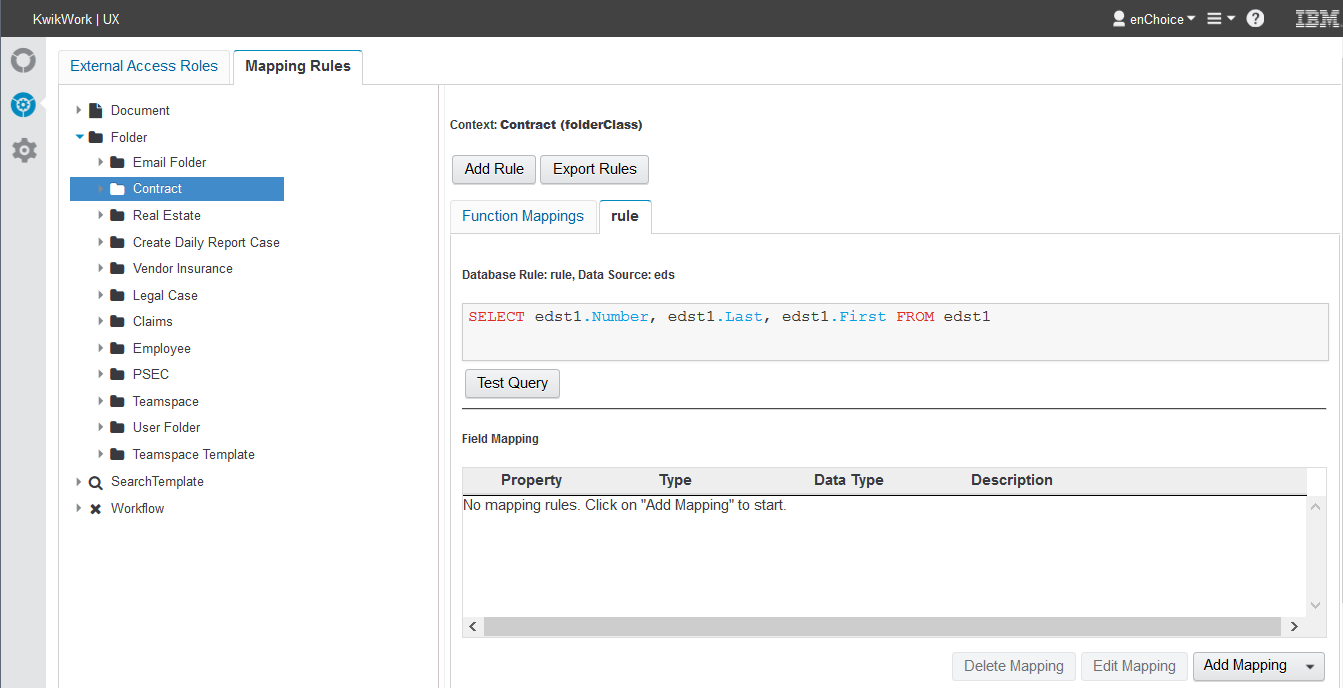
- Enter a database query in the 'Database Rule' text field to search for the data from the external data source that would be used. Click 'Test Query' to verify that the correct data is being retrieved.
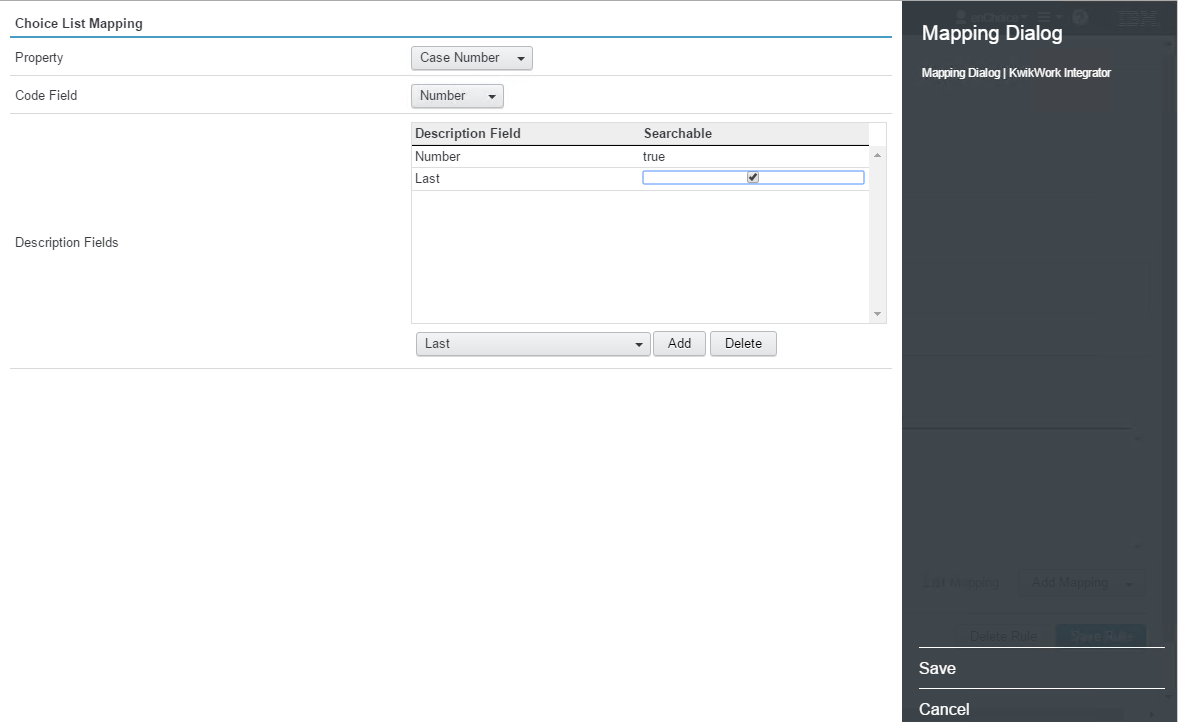
- Click the 'Add Mapping' button then choose and select the type of mapping to be added from the dropdown. On the mapping screen, select a property in the target class and the code and description of columns in the data source. The code is the value that is saved in FileNet while the description is the value that is displayed to the user. It is possible to select multiple fields that will be concatenated in the choice list that is displayed to the end users. The order in which the description columns are selected determines the order in which they appear in the choice list. Optionally double click the 'Searchable' field to enable or disable the columns that will be available for the user to filter results using type ahead. After setting the choice list parameters, click 'Add'.
- Optionally, click the 'Add Mapping' button again then choose Delegate as the Mapping Type. Select a property in the target class and assigned value from the data source that will be assigned to the property when the selector value is chosen. After setting the delegate parameters, click 'Add'
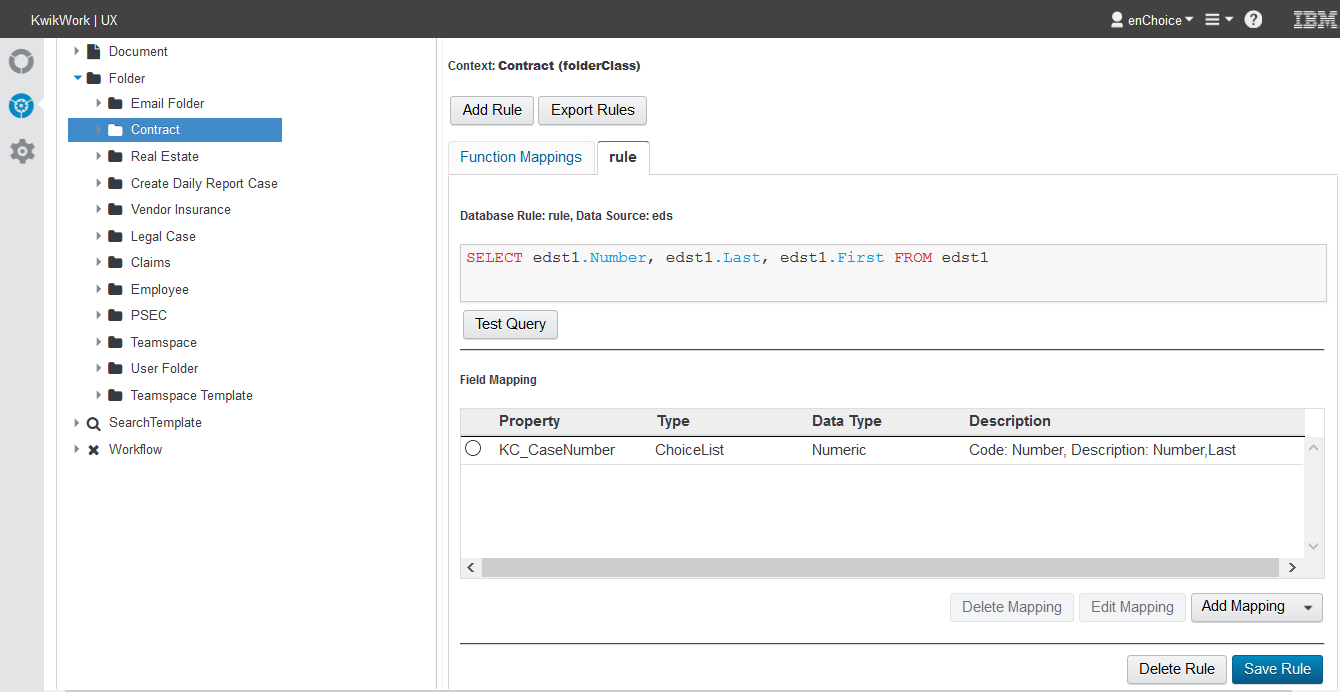
- Steps 5 and 6 can be repeated as many times as needed then click the 'Save Rule' button to save the rule.
- Finally click 'Save Rule' at the bottom of the screen.
- Optionally, mapping can be edited by selecting the mopping then clicking the 'Edit Mapping' button.
Function Mappings
KwikWork Integrator has the ability to add a unique identifier to a property when a document or folder is added. This feature is is configured by configuring a Function Mapping using the following sets.
- Select the Function Mappings tab then click the 'Add Function' button.
- Choose the property that the unique identifier will be applied from the list of choices.
- The feature automatically creates a pattern based on the symbolic name of the property followed by a 6 digit sequence. This can be edited by checking the 'Edit' box and updating the the string and number of digits in the sequence as required.
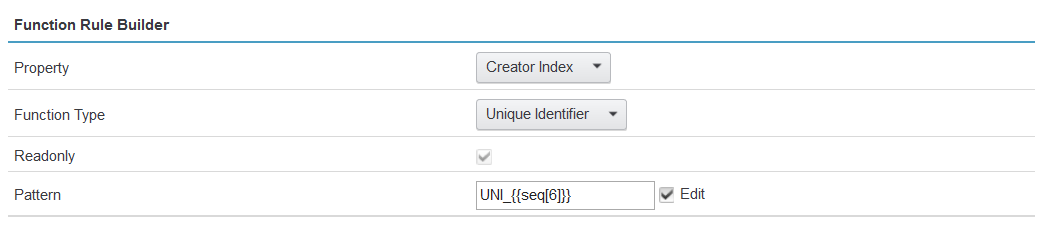
- Save the new rule.
- Create as many function mappings rules as need then save the Function Mappings.
Notes
- A large number of searchable columns could impact performance.
- To improve performance, after upgrading to KwikWork Integrator 2.2, any existing rules will automatically only use the 'Code' column as a the only searchable. To make additional columns searchable, add a new mapping with the desired searchable fields to replace the existing one.