The KwikWork document management functionality adds enhanced tab functionality when a document is opened in the unified view, allowing users to view related documents as well as access content from an external system . In order to use this functionality, a rule must be configured as follows:
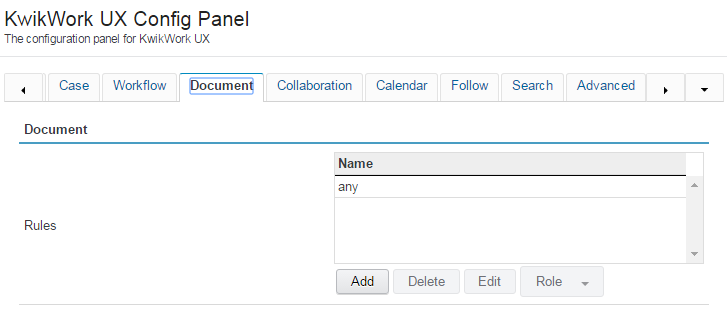
Open the KwikWork Configuration Panel for the desktop that is being configured from the layout tab of the 'Administration View' of the desktop by clicking 'KwikWork UX' from the Features. Click the 'Config Panel' then select the Document tab.
Click 'Add' to create a new rule then select the 'Name' of the document class that the rule is being configured for. For a general rule that applies to any classes without a specific configuration, choose 'any' as the name of the rule.
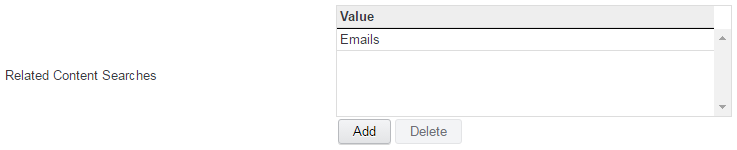
In the 'Related Content Searches' section, click 'Add' then double click 'New' and select a search template from the drop down.
In the value field, enter the symbolic name of the document class for which the related search should be displayed then click 'Save'
Configure 'External Pages' Functionality
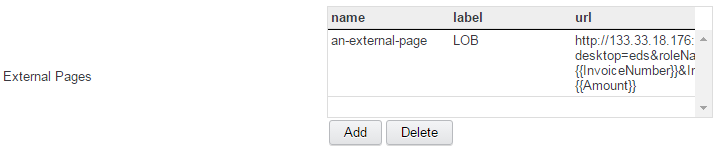
The KwiKWork 'External Pages' functionality provides the ability to access a Line of Business application by injecting properties of a document into a URL which is displayed in a tab when the document is opened. To use this functionality, a URL is constructed with the symbolic name of the propertes to be injected enclosed in double curly brackets. An example is shown below.
http://<URL to access System>&searchId={{InvoiceNumber}}&InvoiceNumber={{Amount}}
The 'External Pages' functionality is configured as follows:
Click the 'Add' button to create a new row in the grid.
Double click the 'Name' field and enter a name for the external page being configured
Double click the 'label' field and enter the text that will be visible to the end user as the heading of the tab when a document is opened.
Double click the 'url' field and enter a url following the convention specified above.
Configure Case Association
The KwikWork Case Association functionality enables users to file existing document into a case. It utilizes a search template to find case folders in which documents need to be filed. KwikWork is packaged with a default 'Case Association' search template which searches for all folders in the repository that is activated by default when KwikWork is installed. Administrators are however able to configure KwikWork to only use specific case types for a document type or use a specific case for all documents within the repository. The following steps are a guide on how to configure the case association functionality using a non-default search template.
Open the KwikWork Configuration Panel for the desktop that is being configured from the layout tab of the 'Administration View' of the desktop by clicking 'KwikWork UX' from the Features list then scroll down to the Document section.
Select the rule for the document class to be configured then click 'Edit'
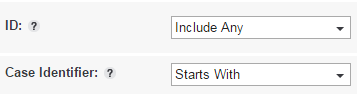
Select a search template from the 'Associated Cases Search' drop down. The search template must be configured with an 'ID' property with an 'Includes Any' operator as well as a 'Case Identifier' property with a 'Starts With' operator as shown below.
Finally click the 'Save' button to save the new 'Associated Case Searches' configuration.
Configure Work Item Association
The KwikWork Work Item Association functionality allows users to view and access any work items that a document is part of. This feature is configured in the Associated Work Items section of the Document tab by entering the 'rosterName' and 'attachmentName' of the workflow.
Configure Document Association
The KwikWork Document Association functionality enables users to associate child documents to compound documents. Once enabled, in conjunction with the KwikWork desktop client, when a user clicks on the parent document, both the parent and any associated child documents are automatically downloaded. It utilizes a search template which is used to associate existing documents as children and an entry template which allows child documents to be added. Like with case association, administrators should create a search template that contains an 'ID' property with an 'Includes Any' operator. The following steps are a guide on how to configure the document association functionality using a non-default search template.
Open the KwikWork Configuration Panel for the desktop that is being configured from the layout tab of the 'Administration View' of the desktop by clicking 'KwikWork UX' from the Features list then open the document tab.
Select the rule for the document class to be configured then click 'Edit' or click 'Add' to create a new rule.
Select a search template from the 'Associated Document Search Template' drop down. The search template must be configured with an 'ID' property with an 'Includes Any' operator.
Select the document entry template that will be used to add new child documents.
Check the 'Show Compound Association' box.
Configuring Entry Template Rules
When documents are being indexed using the KwikWork Upload managers, users are able to select the folder(s) where those documents will be filed. This feature can be configured at the level of the entry template by the administrator by configuring document entry template rules. Any document entry template for which a rule is not created, documents will be saved in the location that was specified when the entry template was created. The following steps are a brief guide of the process of creating document entry template rules.
Open the KwikWork Configuration Panel for the desktop that is being configured from the layout tab of the 'Administration View' of the desktop by clicking 'KwikWork UX' from the Features list then open the document tab.
In the Entry Template Rules section click the add button to create a new rule. If there is an existing rule, there is the option to edit the rule.
From the Name drop down, select the document entry template for when the the rule is being configured.
Select a search template from the 'Folder Search Association' drop down. This search template must be a folder search template that is configured with an 'ID' property with an 'Includes Any' operator similar to those of the case and document association.
Optionally, select a folder entry template from the 'Folder Entry Template Association' drop down to allow users to create ad hoc folders when documents are being indexed.
Finally Click the save button to save the new rule that was created.