Navigation
The following provides settings for the navigation tab of the KwikWork Configuration Panel:
Features - Main navigation bar items
Numerous functions of KwikWork are available from the main navigation bar which is controlled within the KwikWork Configuration Panel. These features are enabled or disabled by double clicking on the value field and then using the check box to enable or disable the feature then clicking the save button to save the value to the configuration.

Available Features
The following is a list of features that are available in KwikWork as well as a brief description of their functionality.
| Feature | Description |
|---|---|
| AddCase | Enables the addition of new case folders |
| AddDocument | Enables the addition of new documents |
| AddFolder | Enables the addition of new folders |
| BrowseOnLogin | Enables KwikWork to browser the repository on login |
| CaseAssociation | Enables the ability to file existing documents into cases |
| DocumentAssociation | Enables the ability associate child documents to compound documents |
| Emails | Enables the ability to send and receive emails from within KwikWork |
| Favorites | Displays a list of favorite documents |
| Follow | Enables the KwikWork follow functionality |
| Home | Enables the home screen with event summary card activated |
| Inbaskets | Displays workflow items |
| LocalAudit | Enables auditing of work flows |
| TextSearch | Enables the Keyword Search functionality |
| UnifiedView | Displays the document as well as metadata. Required in order to use the collaboration and annotation functionality |
| UploadMgmt | Enables the new KwikWork Upload manager which allows documents to be previewed while being indexed. |
| WorkItemAssociation | Enables the ability to view associated work items |
Default View
The Default View functionality of KwikWork allows administrators to choose what a user sees when they first log into KwikWork while still allowing users to have access to other views. To configure this feature, the administrator simply selects one of the view from the drop down list then clicking the save button to apply the changes to the desktop.

Available Features
Feature | Description |
|---|---|
| Home | Displays the home screen with event summary card activated |
| Run Default Search | Executes and displays the default search on log in if one has been configured |
| Run First Search Button | Executes and displays the first search button that has been configured on log in. |
| Run First Browse Button | Executes and displays the browse button that has been configured on log in. This features requires that the 'BrowseOnLogin' be also enabled. |
Unified View
To enhance communication among users, as well as the management of content, KwikWork includes a unified view where users get a broad view of their content with the ability to collaborate with other users. These features are configured by the instance features in the Configuration Panel and are enabled or disabled by double clicking on the value field and then using the check box to enable or disable the feature then clicking the save button to save the value to the configuration.

Available Features
The following is a list of instance features in KwikWork as well as a brief description of their functionality. Feature names are case sensitive.
Feature | Description |
|---|---|
| Annotations | Allows users to make annotations |
| AppletViewer | If activated, KwikWork uses the Daeja ViewONE Professional viewer to open supported documents if the viewer map is correctly configured. |
| CollaborationPanel | Allows users to leave comments on documents |
| ContentDrawer | Enables the content drawer so that documents can be minimized |
| ViewAll | Allows for browsing of other documents from within the unified view |
Search Buttons
A search can be enabled on the KwikWork Navigation bar. To add a search to the navigation bar,
- Click the 'Add' button below the list of search buttons.
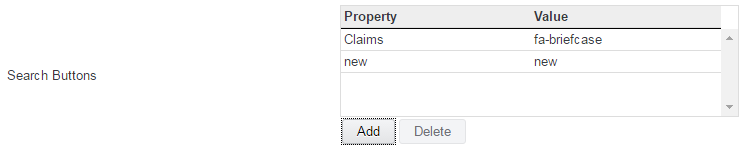
- Double click the new property then select a search template from the dropdown.
- Double click the new value field and enter a font awesome font ID
- To remove a search button, select the button from the list then click the 'Delete' button

Subscription Buttons
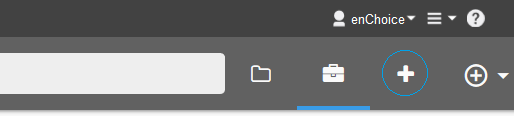
A workflow subscription button can be enabled on the KwikWork Navigation bar which allows users to launch a workflow with a single click. To add a workflow subscription button to the navigation bar,
- Click the 'Add' button below the list of search buttons.

- Double click the new property then enter the GUID of workflow.
- Double click the new value field and enter a font awesome font ID
- To remove a subscription button, select the button from the list then click the 'Delete' button
External Links
KwikWork enables easy access to other applications and systems from the title drawer by using the external links feature in the KwikWork configuration panel. This is enabled by
- Click the 'Add' button to create a new link
- Double click the property and value fields to enter a name and URL
.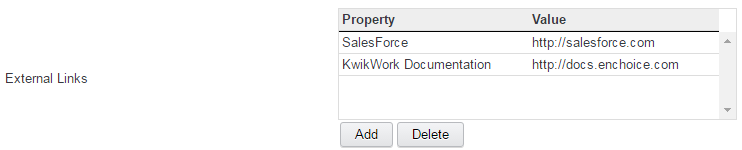
- To remove a link, select it from the list then click the 'Delete' button.
Resources
- For a list of Font Awesome icon codes, visit https://fortawesome.github.io/Font-Awesome/icons/