Search
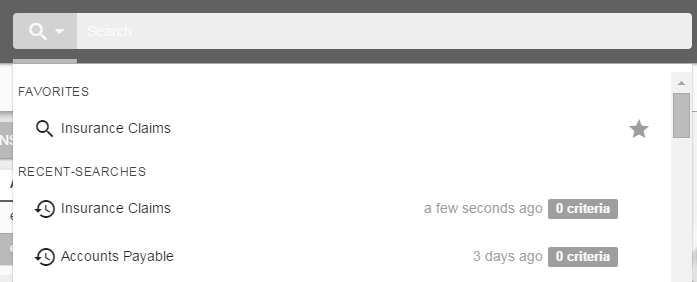
If the 'Home' functionality is disabled in the Navigation section of the KwikWork Configuration Panel, a search results screen can be displayed after a user logs into the system. KwikWork also allows users to perform searches by entering keywords directly in the search bar instead of opening a search template. In order for this feature to be enabled, Content Based Retrieval (CBR) must be enabled on any document class for which keyword search will be available.
Default Search Template
To change the default template, choose one of the templates from the list of available templates. This search will only be displayed if the 'Home' feature is disabled in the 'Navigation' tab.
Max Recent Searches
Specify the maximum number of searches to display in the recent searches drop down.
Keyword Search Template
Select a search template from the keyword search template list to be used for the keyword search functionality. The search template created for the keyword search functionality should search based on a single property such as document title on a document class that has CBR enabled.
Injection Criteria
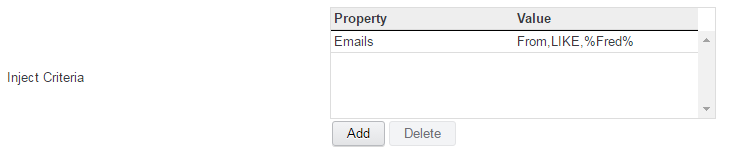
The 'Injection Criteria' setting, automatically injects a value into a search template. Currently this features only allows administrators to inject a user's email id into a search field using the parameter "user.identity.email"
Browse Buttons
The 'Browse Buttons' setting adds a button to the navigation bar that allows users with a one click access to browse folders in the repository. The 'Property' field specifies the directory that will be opened when a user clicks the browser button, while the value field specifies a name for the button.

Exclude Search Templates
The 'Exclude Search Templates' allows administrators to control the search templates that are available to end users from the search menu. Any search templates where the values were changed to 'true' will not be displayed in the search menu.

User Search Templates
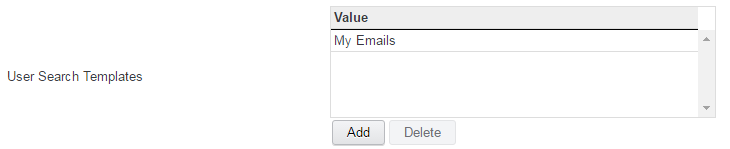
If an email is sent by a KwikWork user to the mail box that is being monitored by KwikWork that does not include a case reference or is not part of an existing email thread, then the message and any attachments are automatically filed in the user's KwikWork user folder. 'User Search Templates' automatically filters the search results of the templates specified to only display documents that are filed within the KwikWork user folder.
Minimum Column Width and Horizontal Scroll
Administrator can improve the presentation and readability of search results by setting a 'Minimum Column Width' value in pixels which ensures that if there are a large number of columns, content will remain readable. The 'Horizontal Scroll' enables users to additional columns by adding a horizontal scroll bar at the bottom of the search results grid.

Configure Folder Columns
KwikWork includes the ability to create dynamic column names when folder searches are performed based on the documents that are filed within the folder. In order to provide users with this functionality, administrators must configure a 'Folder Columns' rule for each search template where this feature will be available. The following are brief instructions on configuring this feature.
- Open the KwikWork Configuration Panel for the desktop that is being configured from the layout tab of the 'Administration View' of the desktop by clicking 'KwikWork UX' from the Features list then open the search tab.
- Scroll down to the 'Folder Columns' section then click the add button to create a new rule.

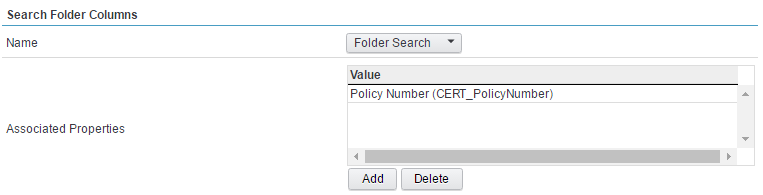
- Select the folder search template for which the rule is being created from the 'Name' drop down.
- In the 'Associated Properties' section, click the add button then select the name of the property that will be dynamically displayed as columns when the folder search is performed. This can be repeated as often as needed and the order in which properties are added will determine the order of the columns.
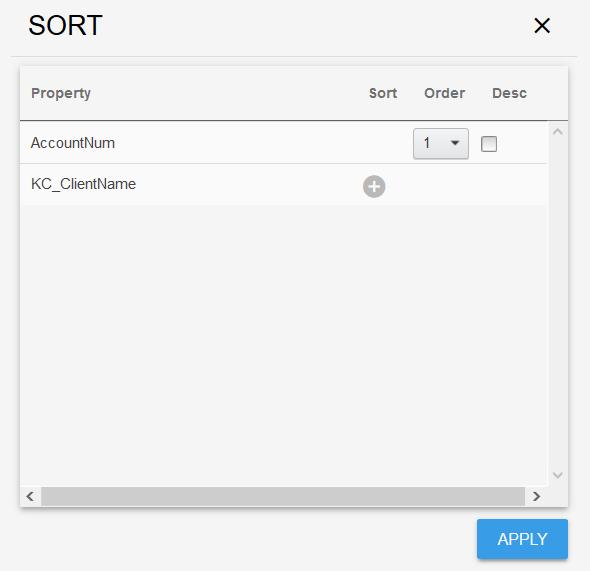
- Optionally click the 'Select' button in the sort section to configure the default sort order when the column search is executed. Use the '+' button to select the columns that will be used for the sort and use the check box to specify if a search is descending.
- Finally click the save button to save the new rule.
Notes
- Information on enabling Content Based Retrieval in FileNet can be found at http://www-01.ibm.com/support/knowledgecenter/SSNW2F_5.2.0/com.ibm.p8.ce.dev.ce.doc/cbr_procedures.htm?lang=en