Workflow
Config Features
Enables User Preferences options in the KwikWork title drawer. The following is an example of two options configured.
| Value |
|---|
Preferences Manage Roles |
Rules
Rules can now be created for each FileNet workflow that is linked to the Application Spaces that have been added to the desktop that is being configured. This guide provides a brief overview of the configurable options that are available when rules for workflows are created.
Name
The name variable specifies the workflow that the rule will be applied to. Administrators have the option of creating individual rules for each workflow or create an 'any' rule which applies the configurable variables to any workflows that do not have a specific configuration.
Attachment Name
The attachment name variable is the name that is assigned to workflow attachments when workflows were created in FileNet.
Default Response
This is the available response if a work item step does not have any named responses specified.
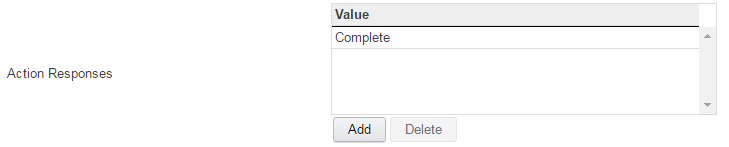
Action Responses
The preferred response that will be automatically selected in the KwikWork Unified Display Step processor.
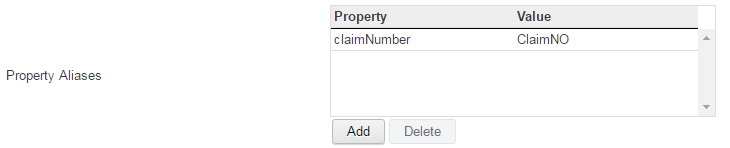
Property Aliases
Property Aliases allow for mapping between workflow and content properties. This is used for the "related documents" tab of the work item. It will use the mapping to inject values in the designated search template as appropriate.
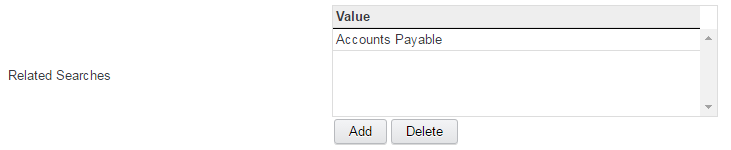
Related Searches
Enables a related search tab when work items are opened in the KwikWork Unified Display.
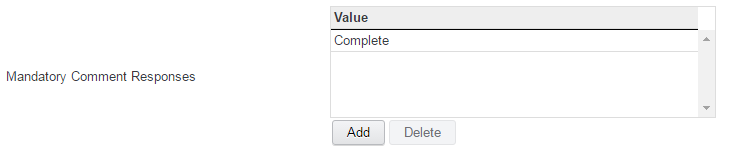
Mandatory Comment Responses
The Mandatory Comment Responses allow administrators to force users to make comments on a work item depending on the response that is chosen. The values entered should be the same as the allowed responses when the case or workflow were created.
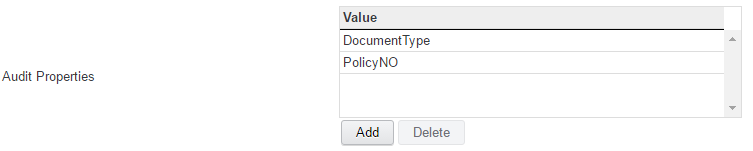
Audit Properties
Audit Properties allow administrators the ability to
'External Pages' Functionality
The KwiKWork 'External Pages' functionality provides the ability to access a Line of Business application by injecting properties of a work item into a URL which is displayed in a tab when the work item is opened. To use this functionality, a URL is constructed with the symbolic name of the properties to be injected enclosed in double curly brackets. An example is shown below.
http://<URL to access System>&searchId={{InvoiceNumber}}&InvoiceNumber={{Amount}} |
The 'External Pages' functionality is configured as follows:
- Click the 'Add' button to create a new row in the grid.
- Double click the 'Name' field and enter a name for the external page being configured
- Double click the 'label' field and enter the text that will be visible to the end user as the heading of the tab when a case is opened.
- Double click the 'url' field and enter a url following the convention specified above.

Attachment Version Type
This features allows administrators to choose which version of an attachment to a work item will be displayed when the work item is opened in the Unified View. Once the the work item has been opened within the unified view, users will be able to select any version to view.

Available Options
| Feature | Description |
|---|---|
| none | Will not display attachments automatically |
| released | Will display only major version of the attachment |
| current | Displays the current version of the attachment whether major or minor |
| reservation | Displays reserved versions of attachments |
Get Next Checked
This features whether the check box to open the next work item after completion of a work item is enabled.

Use Configured Properties Order
When enabled, properties are displayed in the KwikWork step process using the order that was specified in the case solution or work flow.

Show Workflow Properties in the Unified View Header
Future functionality which will display select work item properties in a banner above the attachment.
Virtual Inbox Rules
KwikWork gives users the ability view all of their work items in a single virtual inbox based on a constraint value that corresponds to their email address or user name. Administrators can create a new virtual inbox by configuring the following parameters for each rule that is created.
Name
The name variable specifies the name of the virtual inbox and is also the name that will be displayed in the KwikWork UX.
Roster Name
This is the name of the roster that was configured when the workflow was created.
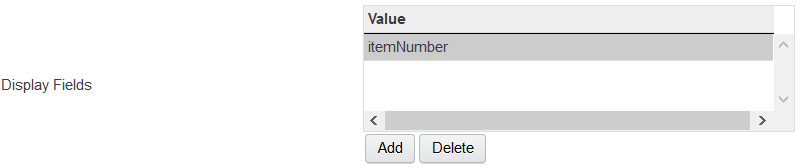
Display Fields
The display fields that are configured represent the columns that will be displayed in the search results grid when the virtual inbox is opened and should be the symbolic names of the workflow that are exposed.
Sort Field
By entering a value for the sort fields, allows administrators to choose which column KwikWork will use to sort inbox items when the inbox is opened. Items will be sorted in ascending order.
Constraint Field
KwikWork is able to find work items that are assigned to a user based a constraint field which has a value that corresponds to the user name or email address configured in the KwikWork preference of the logged in user.
Constrain Rule
The constraint rule specifies whether KwikWork will use the user's email address or user name to locate work item that are assigned to the user.

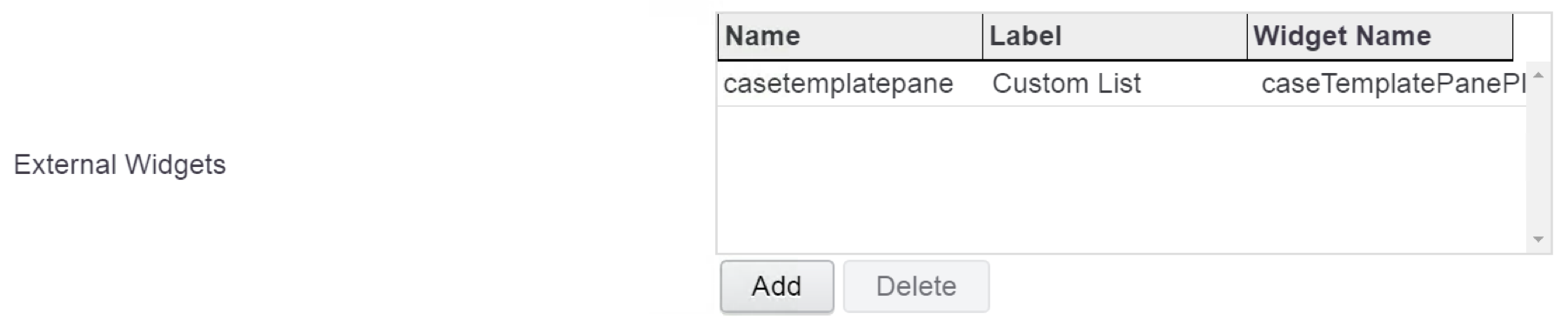
- Double click the 'Widget Name' field and enter the the module identifier or Module ID of Widget that is being added. For example 'dojox/encoding/crypto/Blowfish' where "Blowfish" represents the name of the Widget and the content before the last forward slash represents the name of the module in which the widget is packaged.
Inbasket Work Sorting
Inbasket Work Sorting allows administrators the ability to assign a default sort to when inbaskets are opened in the results grid.This featured is configured as followed.
- Click the add button then add the name of the inbasket, symbolic name of the property being sorted on and the sort order
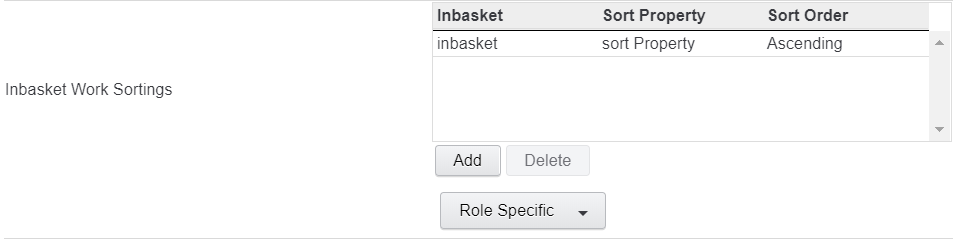
- Optionally the sort order can be configured on a role specific basis by choosing a role from the 'Role Specific' drop down.
Special Note
KwikWork can display a maximum of 10 addition tabs including searches, widgets and links.