Printing
KwikWork printing functionality, enables users to print AutoCAD drawings as well as view previews of other documents. This guide is designed to provide guidance to administrators on activating the printing features of KwikWork. The Case Management functionality can be configured in the 'Printing' section of the KwikWork Configuration Panel of the desktop that is being configured. Note: AutoCAD drawings are printed to a central work station where printers are attached and AutoCAD installed.
Step 1 Configure 'AutoCAD Printing' Functionality
- Open the KwikWork Configuration Panel for the desktop that is being configured from the layout tab of the 'Administration View' of the desktop by clicking 'KwikWork UX' from the Features. Click the 'Config Panel' then select the Printing tab.
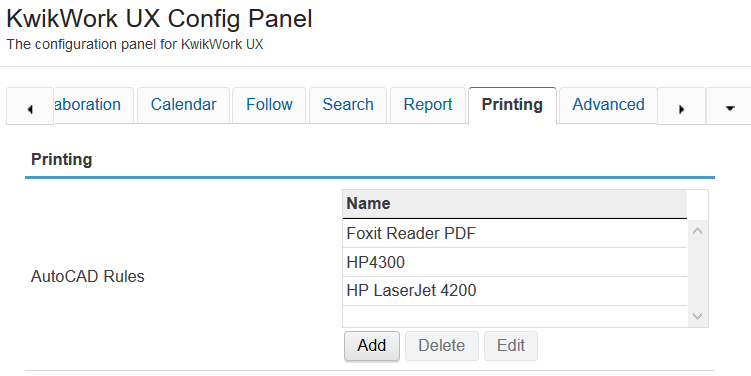
- Select an existing AutoCAD rule and click 'Edit' or click the 'New' button to create a new case rule. A rule should be created for each printer that drawings will be printed on through KwikWork.
- Enter the name of the printer which will be displayed to the end user wants to print a new drawing.
- In the 'Printer Name' field, enter the name of the printer/plotter as in appears in windows on the print station.
- Select an 'Area' from the drop down.
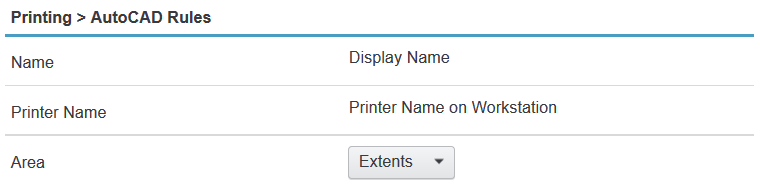
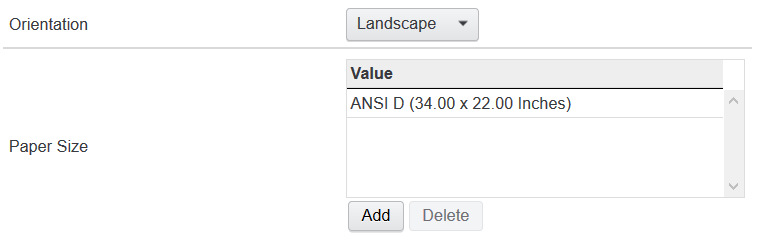
- Select the default orientation for printing drawings.
- Use the 'Add' button in the 'Paper Size' section to add all paper sizes that are available on the printer/plotter.
- Configure additional available options as need then click 'Save'
Step 2 Configure 'KwikWork Print' Functionality
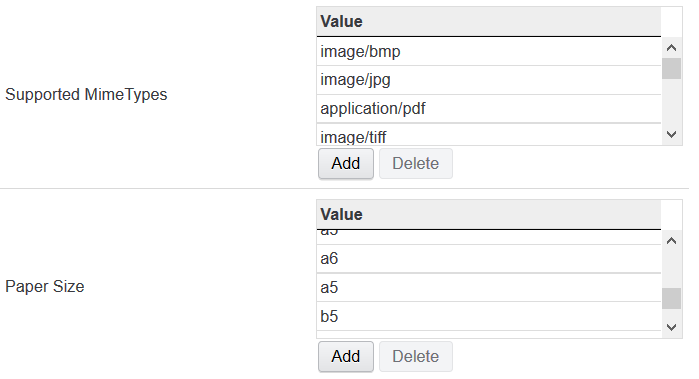
- In the Supported Mime Types section, use the 'Add' button to add the mime types of documents that users will print using the KwikWork Print.
- Add the paper sizes that users will be using to print document from within KwikWork.
Step 3 Add Printer Icons to Menu
- Make a clone of the Default Document Context Menu and add the KwikWork Print and AutoCAD Print features as needed to the menu.
- Update any Desktop where KwikWork will be needed to use the new menu.
Note: KwikWork Print is a default feature of the KwikWork Content toolbar menu.