Case
Overview
KwikWork leverages IBM Case Manager to enable light weight case management capability by enabling advanced case management capabilities through the KwikWork Unified View. This guide is designed to provide guidance to administrators on activating the case management features of KwikWork. The Case Management functionality can be configured in the 'Case Management' section of the KwikWork Configuration Panel of the desktop that is being configured. Note: Most Case Configurations can be made at the role level, allowing administrators the opportunity to control how content is displayed when cases are opened based on the primary role of the user.
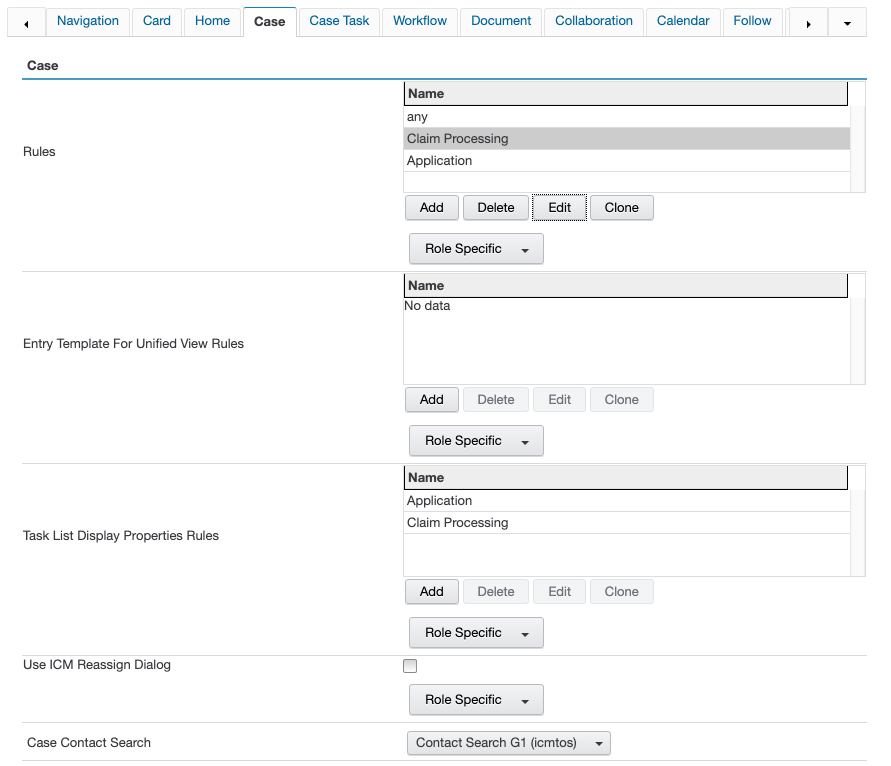
Open the KwikWork Configuration Panel for the desktop that is being configured from the layout tab of the 'Administration View' of the desktop by clicking 'KwikWork UX' from the Features. Click the 'Config Panel' then select the Case tab.
Case Rules
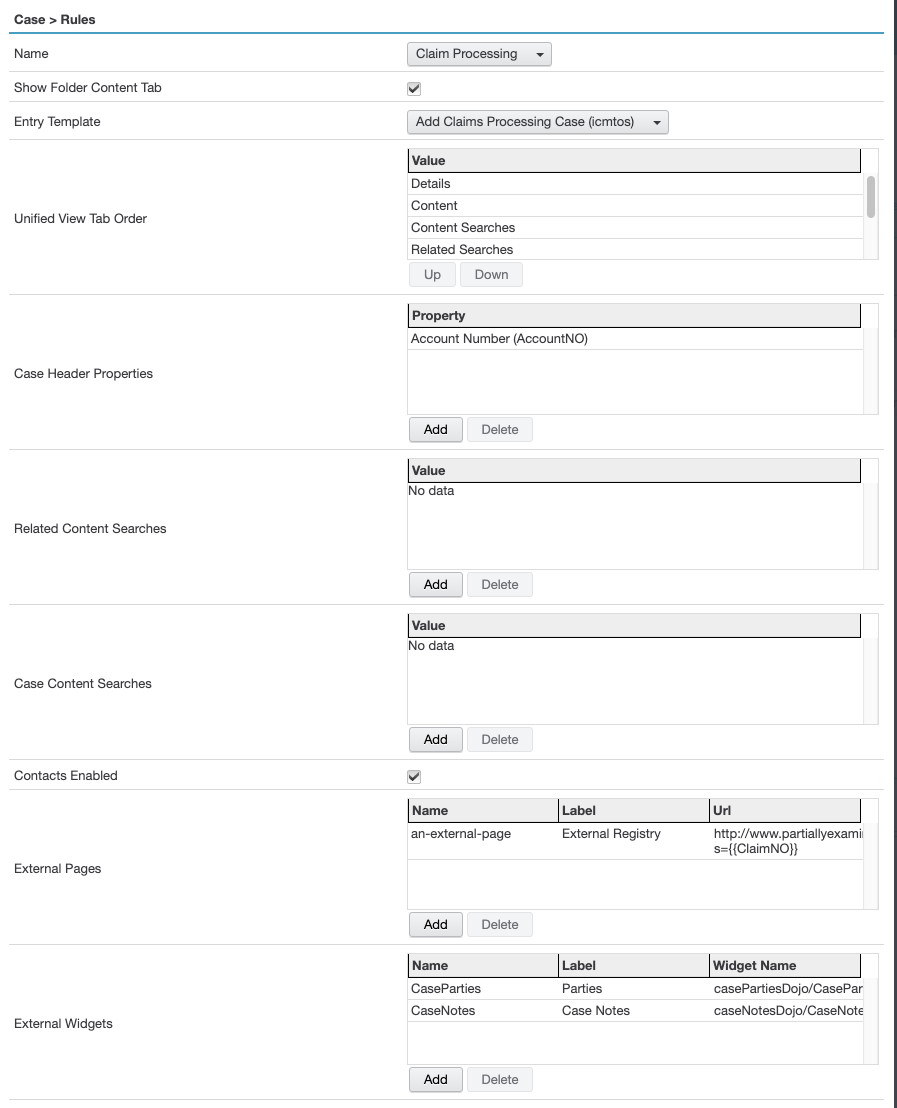
Case rules allow administrator to define how unified view displays certain user interface features based on case type of the opening case. A sample case rule below shows what can be configured.
Name
Select an existing rule and click 'Edit' or click the 'New' button to create a new case rule. A rule should be created for each case type that will be accessed through KwikWork.
Select the name of the case type from the 'Name' drop down. Use 'any' for default configuration.
Show Folder Content Tab
The 'Show Folder Content' option allows users to browse all documents and sub folders within a case. Check or Uncheck the 'Show Folder Content' box to control this feature.
Entry Template
Select the entry template for the case type selected above. This will be used to display metadata in the 'Main' tab when cases are opened.

Unified View Tab Order
This setting controls the unified view's tabs order from left to right.

Case Header Properties
KwikWork has the ability to display some case properties as a header when a case or case task is opened in the Case Tabbed View. In order to use this functionality, the administrator simply has to select the the properties that will be displayed when a user opens corresponding documents.
- Open the KwikWork Configuration Panel for the desktop that is being configured from the layout tab of the 'Administration View' of the desktop by clicking 'KwikWork UX' from the Features list then scroll down to the Case section.
- Select the rule for the case class to be configured then click 'Edit' or add a new rule.
- Click the add button in the 'Case Header Properties' then double click the entry to select the property that will be displayed.

Related Content Searches
KwikWork allows users to automatically search for documents that are related to a case. These are configured in the 'Related Content Searches' grid by adding the search templates that are related to the case from the choice lists in the property field. After clicking the 'Add' button, select the search template from the list of available search templates.
Case Content Searches
The 'Case Content Searches' allows users to view various documents that are filed in a case. KwikWork uses a search template of the document types that need to be viewed and filters the search results to display only documents in the opened case folder. 
Contacts Enabled
Use the check box to enable or disable the 'Contact' tab when cases are opened. The 'Contacts' tab displays any contacts that have been associated to the case.
External Pages
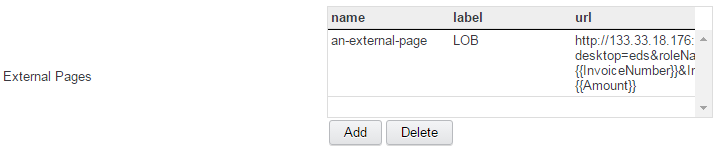
The KwiKWork 'External Pages' functionality provides the ability to access a Line of Business application by injecting properties of a case into a URL which is displayed in a tab when the case is opened. To use this functionality, a URL is constructed with the symbolic name of the properties to be injected enclosed in double curly brackets. An example is shown below.
http://<URL to access System>&searchId={{InvoiceNumber}}&InvoiceNumber={{Amount}}
The 'External Pages' functionality is configured as follows:
- Click the 'Add' button to create a new row in the grid.
- Double click the 'Name' field and enter a name for the external page being configured
- Double click the 'label' field and enter the text that will be visible to the end user as the heading of the tab when a case is opened.
- Double click the 'url' field and enter a url following the convention specified above.
External Widgets
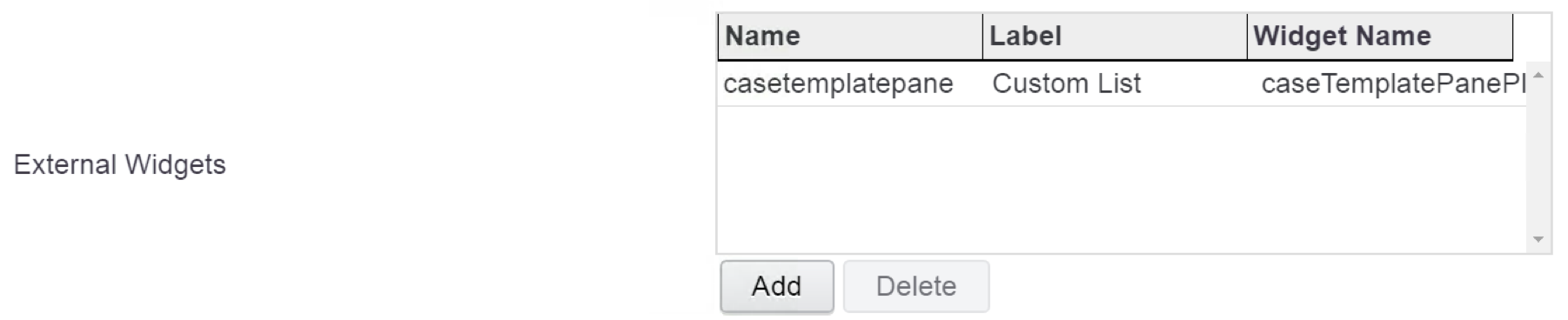
The KwiKWork 'External Widgets' functionality provides the ability to access ICN Plugins/Widgets from within the Case Tabbed View. PS Custom widgets are configured herewithin.
The 'External Widgets' functionality is configured as follows:
- Click the 'Add' button to create a new row in the grid.
- Double click the 'Name' field and enter a name for the external page being configured
- Double click the 'Label' field and enter the text that will be visible to the end user as the heading of the tab when a case is opened.
- Double click the 'Widget Name' field and enter the the module identifier or Module ID of Widget that is being added. For example 'dojox/encoding/crypto/Blowfish' where "Blowfish" represents the name of the Widget and the content before the last forward slash represents the name of the module in which the widget is packaged.
Entry Template For Unified View Rules
KwikWork has the ability to display different entry templates for the 'Main' tab when a case is opened depending on a value of a property or properties of the case. This is achieved by creating a rule that uses an expression written in the KwikWork query language (Kwql).
- Open the KwikWork Configuration Panel for the desktop that is being configured from the layout tab of the 'Administration View' of the desktop by clicking 'KwikWork UX' from the Features list then scroll down to the Case section.
- Click the 'Add' button to create a new rule or choose a role from the 'Role Specifc' drop down menu.
- Select the name of the Case class and the entry template that will be opened if the rule is satisfied.
- Click the 'Create' button to create a Kwql Expression.

- After the 'where' type the expression that needs to be satisfied for the rule to enforced then click the 'validate' button. If there are any errors in the expression, KwikWork will display an alert in the 'Error Messages' area.

Valid Operators == is > < not include any and (&&) or (||)
- After the 'where' type the expression that needs to be satisfied for the rule to enforced then click the 'validate' button. If there are any errors in the expression, KwikWork will display an alert in the 'Error Messages' area.
- After the expression has been validated and no errors found, click the 'Apply' button to save the rule.
Task List Display Properties Rules
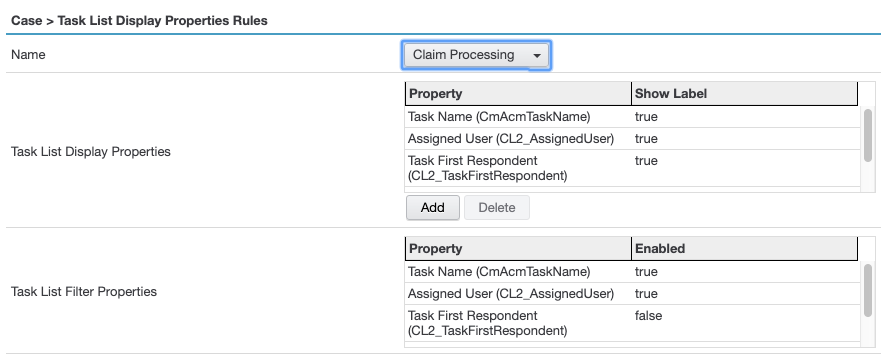
Upon opening a case, unified view allows collaboration panel to disply all case task in case task tab. This rule allows administrator define task properties list to be displayed in the task list tab.
Name
Select a case type to configure from the list.
Task List Display Properties
Administrator can configure as many properties as needed to display in the task list. The first item is treated as Title field so it is displayed as bold font. All other properties are displayed in regular font. The first 6 properties are displayed as regular property text, additional properties are displayed in a tooltip text.
Task List Filter Properties
This list of properties, max 6, are to be used for advanced searches for the tasks from the list in collaboration panel.
Use ICM Reassign Dialog
This feature allow users to be able to reassign case tasks using the out of the box IBM Case Manager dialog. To enable this feature, simply check the check box

Case Contact Search
KwikWork uses the case contact search template when filtering contacts that are associated to a case when creating an email or calendar event.
