Updating KwikWork
The following steps are required to update KwikWork for Content Navigator.
Expand the installer
The installer needs to be expanded on the Content Navigator server by following the steps below:
unzip KwcnSetup-5.0.x.zip |
Update Shared Libraries
Copy the kwcn-client.jar file from the installer to the 'ECMClient/plugins' directory
Update KwikWork Database
When upgrading from a version prior to 4.0, the OrientDb databases need to up exported so that they can up upgraded when the new version of KwikWork is deploy. This is achieved by performing the following steps :
- Expand the export tool that is packaged with KwikWork Installer.
unzip OrientExport.zip - Make a backup copy of the <working folder>/OrientDB folder.
- Change the default values in the "exportdb.bat" or "exportdb.sh" as needed.
- Open CMD prompt or Terminal to this directory and run the exportdb.bat (.sh) file.
- Once successfully exported, verify the backups have been created at <working folder>/OrientDB/backups.
- Continue to next section to update the KwikWork Engine.
Note: These instructions are also contain in the Readme.text file that is packaged in the OrientExport.zip.
Update the KwikWork Engine
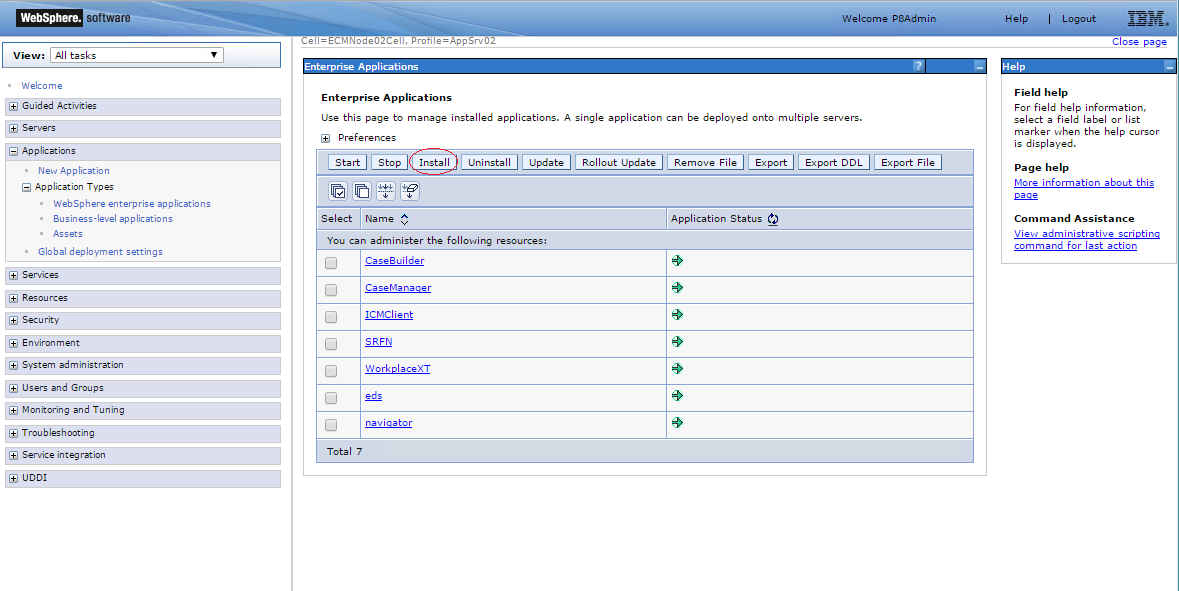
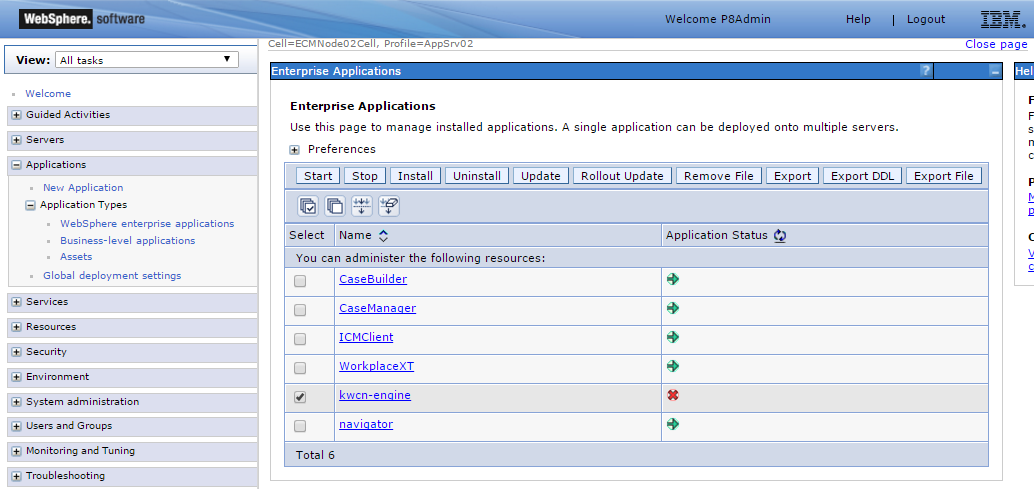
Log into the WebSphere Integrated Solutions Console on the application server where IBM Content Navigator is installed then navigate to Applications→Application Types → WebSphere enterprise applications then uninstall the 'kwcn-engine' application.
- Click the install button above the list of installed applications.
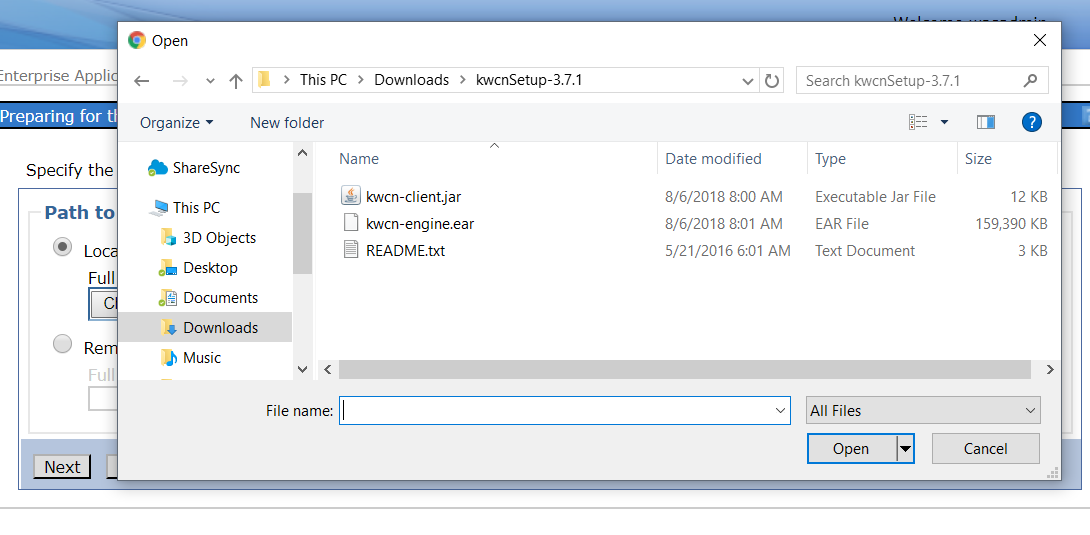
- Click the 'Choose File' button under 'Path to the new application' and locate the kwcn-engine.ear file in the installer that was extracted earlier. Select the ear file, click 'Open' on the dialogue box then click Next.
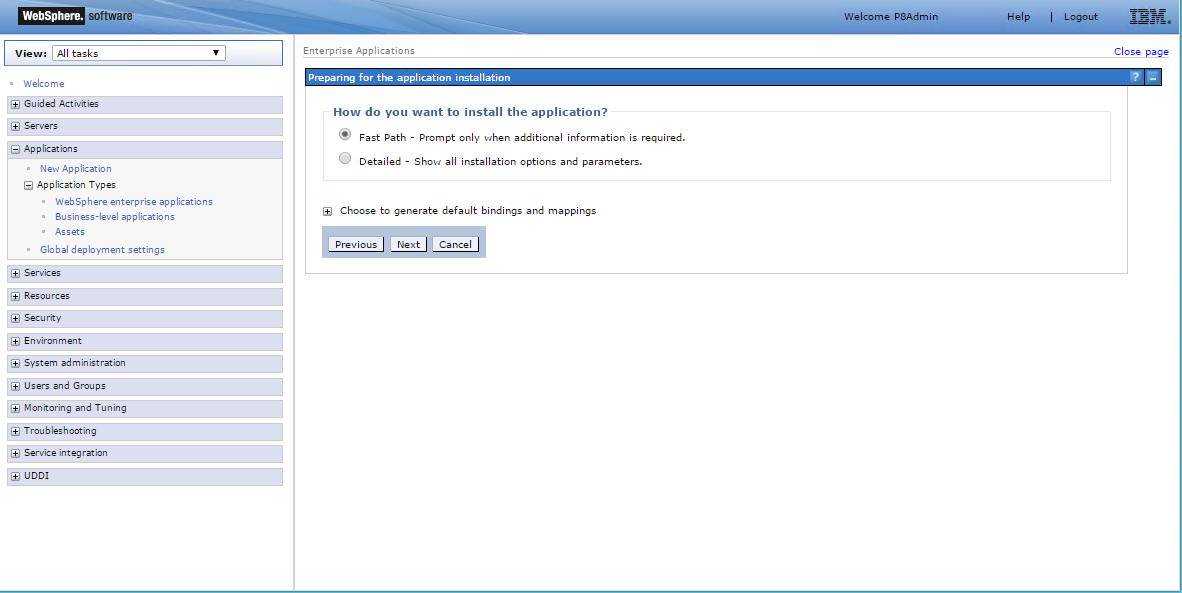
Choose 'Fast Path' if it is not already selected then click Next.
Leave the default values for all steps of the install process.
Finally verify the settings on the Summary page and click 'Finish' for WebSphere to install the Kwcn Engine then save to master configuration.

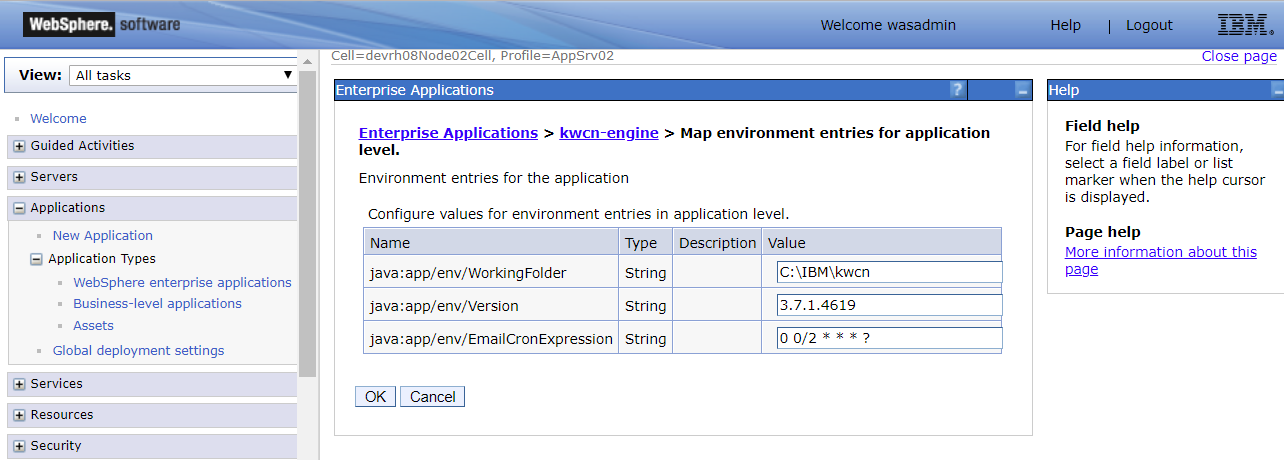
Edit the newly installed kwcn-engine and click 'Environment entries for the application' then update the WorkingFolder to point to the location on the server where KwikWork configurations will be stored. Click 'Ok' and save to master configuration.
Finally, start the KwikWork Engine by checking the box for kwcn-engine then clicking Start.
Update KwikWork Objects
- Navigate to the desktop where the KwikWork features were added then edit the KwikWork for Content Navigator plugin in the Administration View.
- Reload the KwikWork for Content Navigator plugin.
- In the field at the bottom of the settings, enter the name of the primary repository of the desktop then click the 'Prepare UX Repository' button. NOTE: The Prepare Repository should be performed by an administrator that has full control over all classes created by KwikWork and any objects created from those classes.
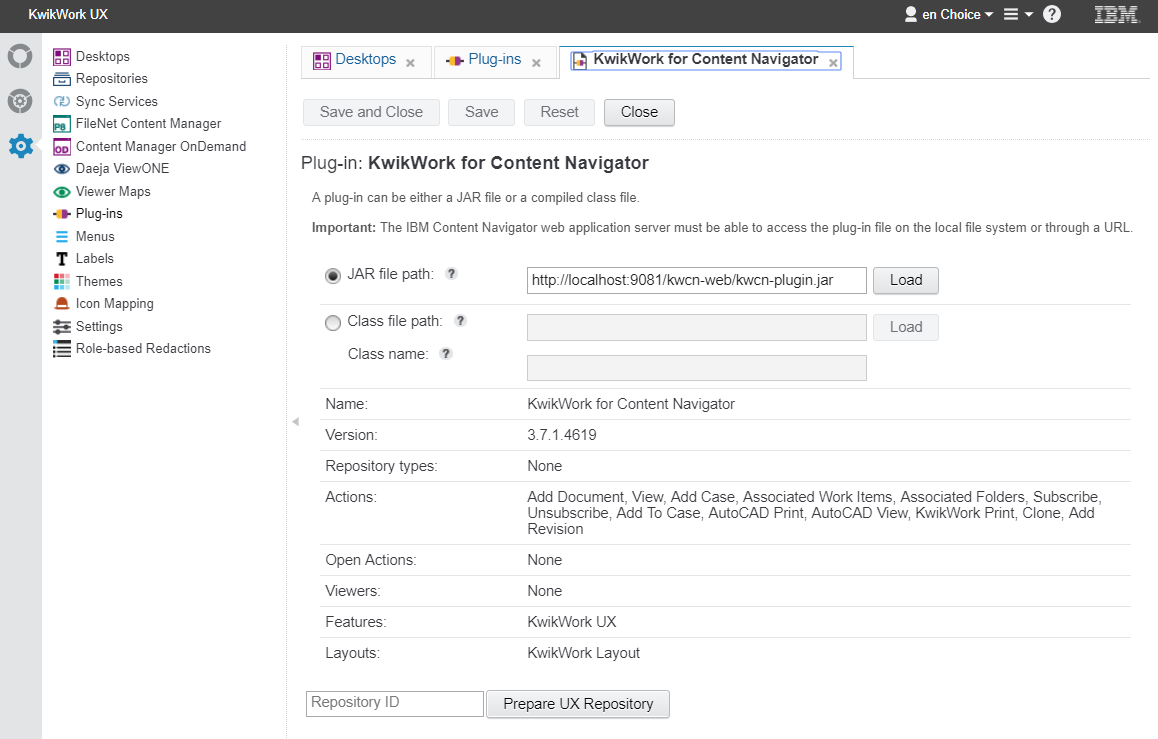
- Finally click the 'Save and Close' button to save changes.
Final Steps
- Verify Daemon Repository credentials for all desktops.
The following permissions need to be set in FileNet for any users that will be using the KwikWork UX.
Object
Symbolic Name
Display Name
User Permissions
Description
Custom Objects
KwikWork Service Queue Request Class
KwQueueRequest
KwikWork Service Queue Request
None required
Used for KwikWork rendition service
KwikWork Scheduled Task Class
KwScheduledTask
Scheduled Task
Modify Permissions
Used when creating and updating calendar events and tasks
Folder
Email Folder Class
KwEmailFolder
Email Folder
Create
Used to store new unfiled emails that are sent to KwikWork without a case identifier in the subject
kwcn/user-folder
username
username
Create sub-folder, File and Un-file
Used to store un-filed emails
User Folder Class
KwUserFolder
User Folder
Create
When users update their KwikWork Preferences, a user folder is created
Document Class
Contact
KwContact
Contact
Create
Used to create contacts within KwikWork
Contact Group
KwContactGroup
Contract Group
Create
Used to create Contact Groups within KwikWork
Email Correspondence
KwEmail
Email Correspondence
Create
Used when emails are sent from within the KwikWork
Email Attachment
KwAttachment
Email Attachment
View
Used when emails with attachments are sent to KW by email. Done by admin account in backend.
KwikWork Form Attachment
kwFormAttachment
KwikWork Form Attachment
View
Used for launching workflow from HTML Form
KwikWork Rendition
KwRendition
KwikWork Rendition
Create and Delete
Used when documents are printed using the KwikWork Print or AutoCAD print and when DWG files are rendered in the Unified View
KwikWork Report
KwReport
KwikWork Report
View
Class Used to store KwikWork Report definitions
Upload
KwUpload
Upload
Modify Permissions
Used when documents are added using the Upload Manager
Note: All objects above require that the Administrator or Administrator group have Full-Control for Security and the Default Instance Security