Report
Overview
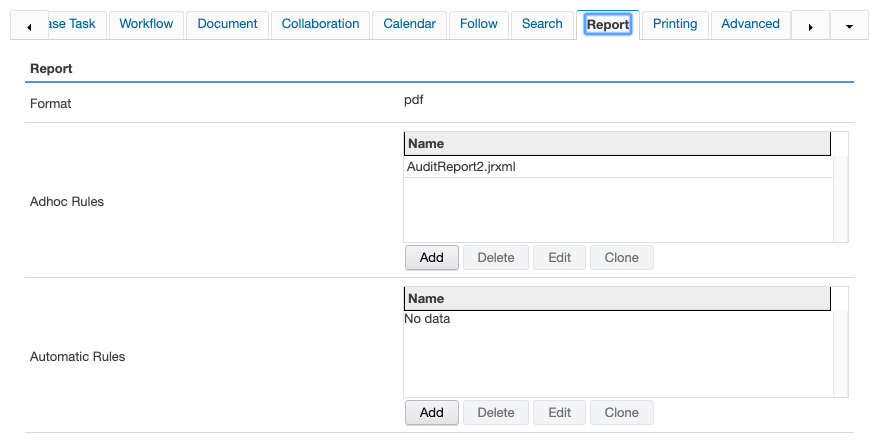
Format
Adhoc Rules
- Create the required report template in Jasper Studio and import it to the folder '..\IBM\kwcn\import\reports', once imported it will appear in '..\IBM\kwcn\import\success'
- Configure the 'Audit Properties' the properties that are required in the Reports, ConfigWorkflow->RulesAudit Properties
- There are 2 types of reports a) Adhoc and b) Automatic reports.
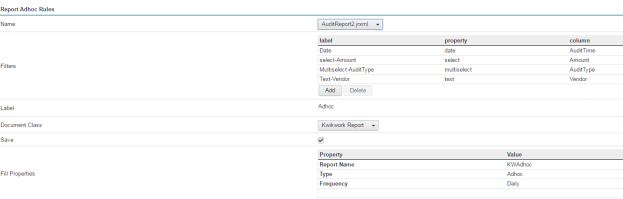
- To Configure an Adhoc report, Go to Repots Adhoc Rules section and click 'Add'
- Select the template from 'Name' drop down, provide a 'Label' for this report to identify.
- Configure 'Filters' for Adhoc reports, these 'Filters' are the columns that are used for filtering the report data.
- Filters require 'label' Label to be displayed on that filter, 'property' the input data component to present the filter and 'column' the columns name that should match with the column name in 'Audit Record' table.
- Select the Document class to store the report in repository, the default document class for reports is 'Kwikwork Report'.
- Select the check box 'Save' to save the generated report in the repository. Uncheck if you don't want the report to save in repository.
- Configure 'Fill Properties', to fill the property with a 'Value' when the document is saved in the repository.
Automatic Rules
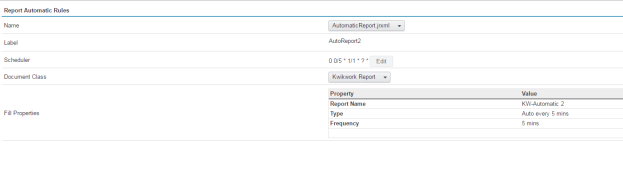
- To Configure Automatic Reports, Reports Automatic Rules section and click 'Add'
- Select the template from 'Name' dropdown and provide a 'Label' for it.
- Configure the 'Scheduler' using CronMaker (http://www.cronmaker.com/), to run the automatic reports according to the scheduled time. Remember 'Edit' button not working for now. Please double click it and edit the scheduler time.
- Configure the 'Document Class' from the drop down, default to 'Kwikwork Report'.
- Configure 'Fill Properties'
Note: Filters are applicable for automatic reports
- The automatic report rule needs to configure 'Daemon Repository' under 'Advanced' tab of configuration panel.

The above configured "Adhoc" report can be accessed from Kwikwork UX Side navigation, under Reports section, where we can Preview the report data or Generate the report as a PDF file
Configuring the Report template and DataSource :
- Install the Jasper studio and configure a data source in the report project to connect to the audit DB as below while creating the report templates in Jasper studio
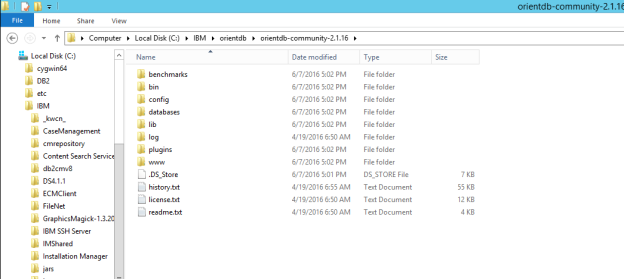
- Download the Orient DB sources, currently the Orient DB that works with Jasper Studio is 2.2.16 (default location will be C:\IBM\orientdb\orientdb-community-2.1.16)
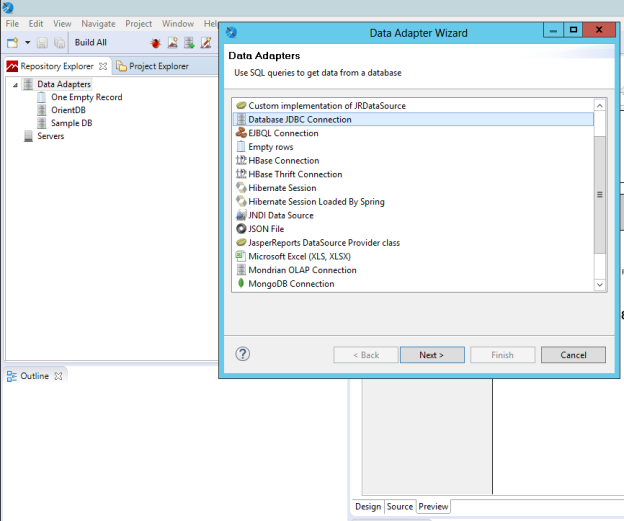
- in Jasper Report Studio, create a new project and go to the Repository Explorer, Data Adapters, and create a new data adapter of type Database JDBC Connection:
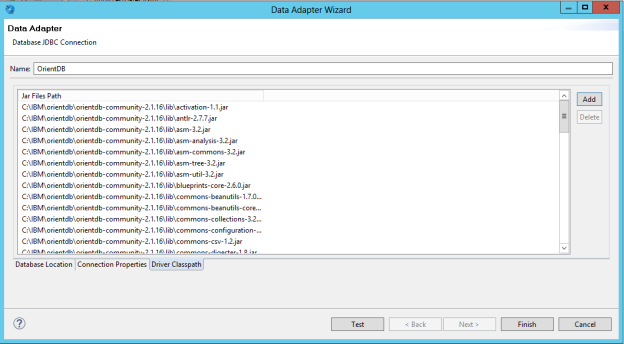
- Configure the orient DB connection by adding the Orient DB drivers to the driver classpath (Preferably add all the jars from the lib subfolder in orientdb)
- Configure the DB location as. Note: define the JDBC driver class as "com.orientechnologies.orient.jdbc.OrientJdbcDriver" manually
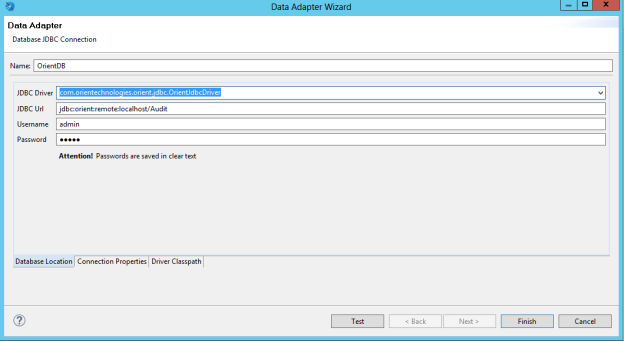
- Configure the JDBC with the server URL e.g. "jdbc:orient:remote:133.33.18.176/Audit" for remote servers and "jdbc:orient:remote:localhost/Audit" for local servers.
- Create the report templates and import them to use in KwikWork UX