Follow
Overview
How to configure Follow feature
KwikWork provides users with the ability to follow documents and workflows. Followed items are automatically updated when an action is performed on items so that the follow list always provides users with the most current version of items. This functionality leverages the KwikWork User Folder that is created when a user save their KwikWork Preferences. The following are the steps that should be performed in order to use the 'Follow' feature. NOTE: The search template configured for this functionality can be used for notifications allowing users to only track changes to the documents that they are following.
Step 1 - Create a search template in Content Navigator that searches across all document classes that will be followed.
Step 2 - Configure Follow in KwikWork
- Open the KwikWork Configuration Panel for the desktop that is being configured from the layout tab of the 'Administration View' of the desktop by clicking 'KwikWork UX' from the Features. Click the 'Config Panel'.
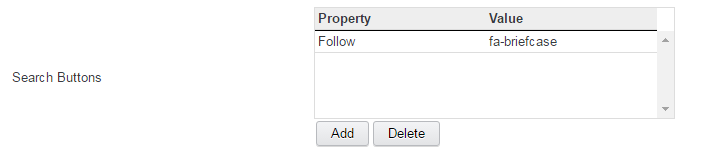
- Select the search template that was created in step 3 above from the 'Search Buttons' choice list in the 'Navigation' section.
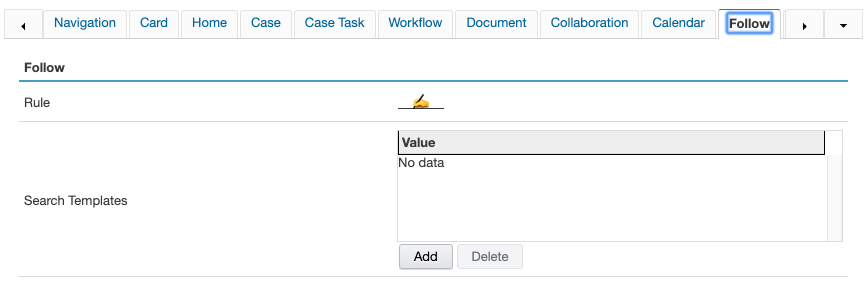
- In the 'Follow' section of the configuration panel, select the search template for the subscribe/follow search in the 'Search Templates' property.
- Optionally, the follow search template can also be set as the notifications search template in the 'Home' tab.
Resources
- IBM FileNet P8 documentation can be located at http://www-01.ibm.com/support/knowledgecenter/SSNW2F_5.2.1/com.ibm.p8toc.doc/welcome_p8.htm
- IBM Content Navigator Documentation can be located at http://www-01.ibm.com/support/knowledgecenter/SSEUEX_2.0.3/contentnavigator_2.0.3.htm
- For KwikWork icons configuration, review the KwikWork Icon documentation located at Icons