Advanced
The Advanced KwikWork configurations tab allows administrators to configure aspects of KwikWork that don't require regular updates including icons, shortcuts and other advanced features.
Icons
Icons used throughout the KwikWork UX user interface can be configured with the use of Font Awesome icon types. The following provides information for configuring the icons within KwikWork UX.
Configuring Icons
Icons used in KwikWork desktops are configurable within the KwikWork Configuration Panel. The process to update icons is outlined below.
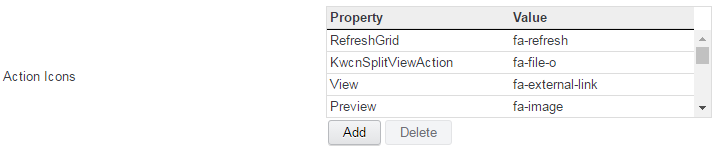
- Choose the action icons that will be configured then update the value field using the desired font awesome class. Click save to apply the change.
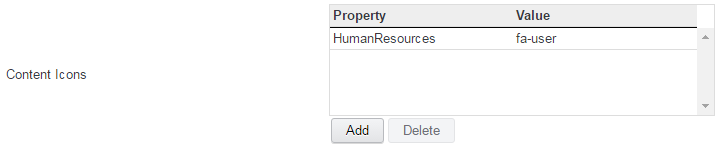
To specify icons for various content types in KwikWork, the symbolic name of the document classes are entered in the property field, then the font awesome class of the desired icon is entered in the value field. Click save to apply the change. Any changes to to the content icons is overwritten by the file icons configurations.
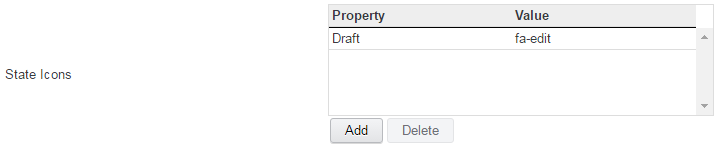
KwikWork allows custom icons to represent different stages in a document's life cycle. The state is first entered in the property field, then the font awesome class of the desired icon is entered in the value field. Click save to apply the change.
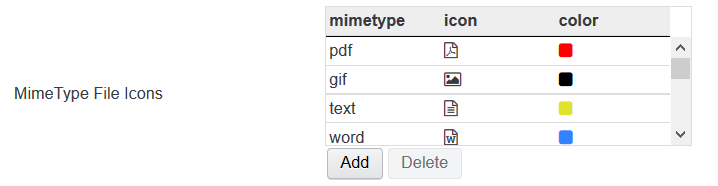
KwikWork allows administrators to configure the color and icons for MIME types. Specify the file extension in the 'mimetype' property, the font awesome font code for the icon, and a hex code for the color of the icon. Click save to apply the change.
Shortcuts
The KwikWork plug-in maps keyboard shortcuts to a list of predefined actions. Keyboard shortcut assignments are accessible from in the 'Shortcuts' section of the KwikWork Configuration Panel.
Supported Keys
- Usable modifier keys are shift, ctrl, alt, option, meta, and command.
- Other special keys are backspace, tab, enter, return, capslock, esc, escape, space, pageup, pagedown, end, home, left, up, right, down, ins, and del.
- Any other key can be referenced using its name. For example a, /, $, *, or =
Factory Default Keyboard Shortcuts
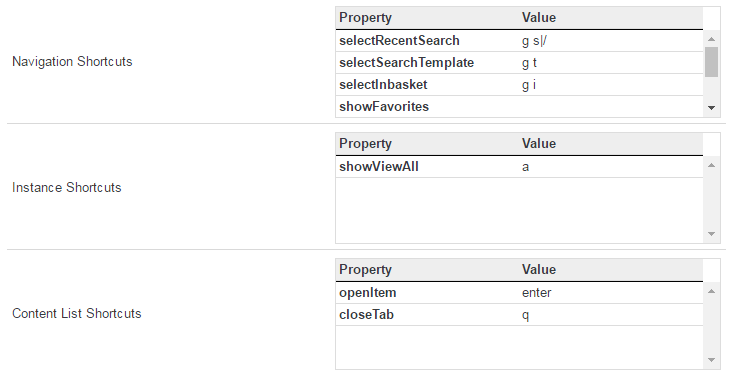
The default installation of the KwikWork plug-in includes all controllable aspects already assigned. The list below contains all shortcut assignments divided into three sections.
- Navigation Shortcuts
- Instance Shortcuts
- Content List Shortcuts
Navigation Shortcuts
The following table contains the shortcuts that can be used to navigate around the interface without the use of a mouse.
| Property | Value | Description |
| selectRecentSearch | g s|/ | Displays search menu with recent searches tab selected |
| selectSearchTemplate | g t | Displays search menu with search templates tab selected |
| selectInbasket | g i | Displays the In Basket menu |
| selectFavorites | ||
| selectNextTab | l | Selects the next tab if multiple tabs are opened |
| selectPreviousTab | h | Goes back to the previous tab if multiple tabs are opened |
| selectVisibleResultsGrid | g g | Selects the open results grid for use |
Instance Shortcuts
The following table contains the keyboard shortcuts that can be used to access available features while a document or folder is open.
| Property | Value | Description |
| showViewAll | a | Activates the view all feature to show list of all items within folder |
Content List Shortcuts
The following table contains a list of keyboard shortcuts that can be used while browsing lists within KwikWork.
| Property | Value | Description |
| openItem | enter | Opens the selected item in the document viewer |
| closeTab | q | Closes the current tab |
Assigning Keyboard Shortcuts
Single Keys
To assign a single key to control an action, simply specify the name of the key in the box next to the action and then click save. Key names should be in lowercase letters. For example 'e'
Sequence Keys
The plug-in uses a space between key names to indicate a key sequence. For example a value of 'a b' would indicate that the keys 'a' and 'b' must be pressed in succession to trigger an action.
Shift Key
The plug-in automatically recognizes any key assignment that requires the shift key and therefore a user would not need to hold down shift to activate the feature. The shift and non-shifted versions of the same key should therefore not be used to trigger two different features.
Advanced Features
Welcome Tour
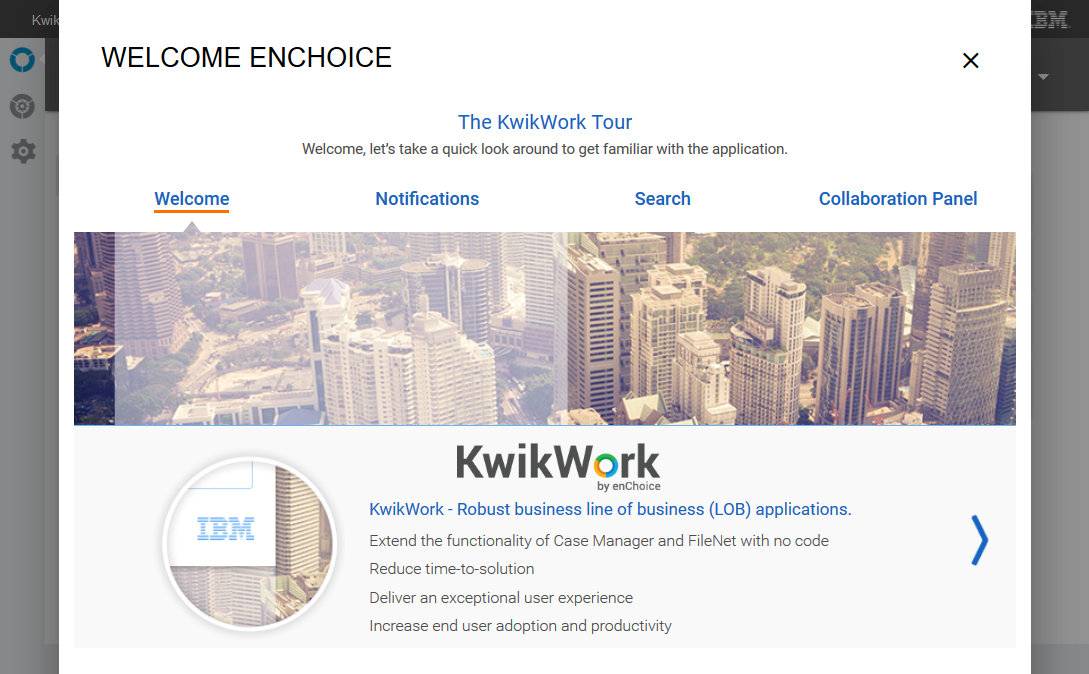
The default tour is included and deployed in the following location on the application server: /navigator/kwcn-resources/tour/index.html.
A different tour can be configured in the 'Welcome Tour Url' setting box. The tour is house in an iframe with dimensions of 832 x 643 pixels, so the tour pages should fit in this area.

Included welcome tour:
Logo Height
The Logo Height setting allows for control of the height of the top ICN bar. The value is measured in pixels.
Thumbnail Preview Height
The Preview Height setting provide the ability to adjust the quality of the document preview thumbnail by specifying the dimensions of the thumbnail image. The value is measured in pixels and the recommended value is 300. A browser refresh is required for this setting to take effect.
Thumbnail Hover Delay
The Hover Delay setting controls the delay when hovering over a document preview thumbnail before KwikWork begins to generate thumbnails for multi-page documents. The value is measured in milliseconds and the recommended value is 800. A browser refresh is required for this setting to take effect.
Setting Maximum Thumbnail Preview pages.
The Max Page Preview setting allows for control over the number of pages that can be viewed in the document preview window. The default value is 10. A browser refresh is required for this setting to take effect.
Setting Maximum Documents Preview.
The 'Max Document Preview' setting allows for control over the number of documents in a case or folder for which a thumbnail can be viewed in the document preview window. The default value is 10. A browser refresh is required for this setting to take effect.
Daemon Repository
Update the 'Daemon Repository' settings with the settings of the repository where KwikWork is deployed. NOTE: Verify repository credentials after every update of the KwikWork UX

Exclude Entry Templates
The 'Exclude Entry Templates' allows administrators to control the entry templates that are available to end users when adding new content. Any entry templates where the values were changed to 'true' will not be available to end users when they are adding content.
