Configuration Settings
This section provides information on how to configure the KwikWork UX options.
In KwikWork, features can be configured by the system administrator in the layout tab of the administration view of each desktop where the KwikWork plug-in is installed. KwikWork requires that the administrator be logged into the desktop that will be configured in order to prevent accidental misconfiguration of desktops. When new desktops are added, they use the default feature configuration that was used when KwikWork was installed. NOTE: In order to create a cleaner interface, any search template selected in the configuration panel will not be available for end user use from the KwikWork Search bar.
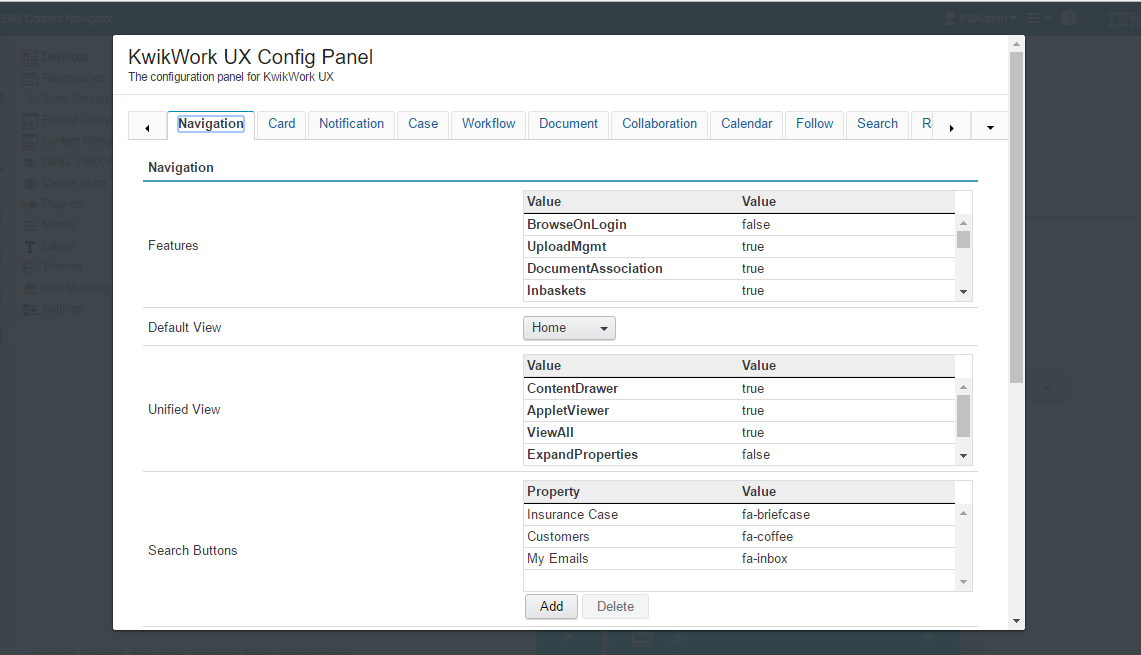
The settings are broken down into the following categories:
- Navigation: Allows administrators to configure the main navigational settings
- Card: Allows administrators to control the FileNet social features displayed on property cards
- Notification: This sets the search template used for the notifications displayed on the 'Home' screen
- Case: Allows administrators to configure case management functionality including default entry template, contact management, related searches and cases searches.
- Workflow: Any special behaviors that are needed in the workflow can be controlled by the Workflow setting. For example, the application needs to look for special attachment names in work items.
- Document: Allows administrators to configure tabbed view for document classes including related searches, case association and links to external applications
- Collaboration: Contains configuration for all collaboration features including emails and all features of the collaboration panel
- Calendar: Allows administrators to configure To-do and Scheduled Events that appear in the KwikWork Dashboard.
- Follow: Allows you to configure the Search Template, folder class, and rule name needed for the Follow functionality.
- Search: Allows administrators to configure the default search template, keyword search, injection criteria, maximum number recent searches, template exclusion and browse functionality.
- Report: Allows administrator to configure adhoc and automatic rules for KwikWork reports.
- Advanced: Allows administrators to configure advanced features including icons, shortcuts, entry template location, welcome tour and logo.
Refer to the following for configuring options in each category: