Roles Configuration
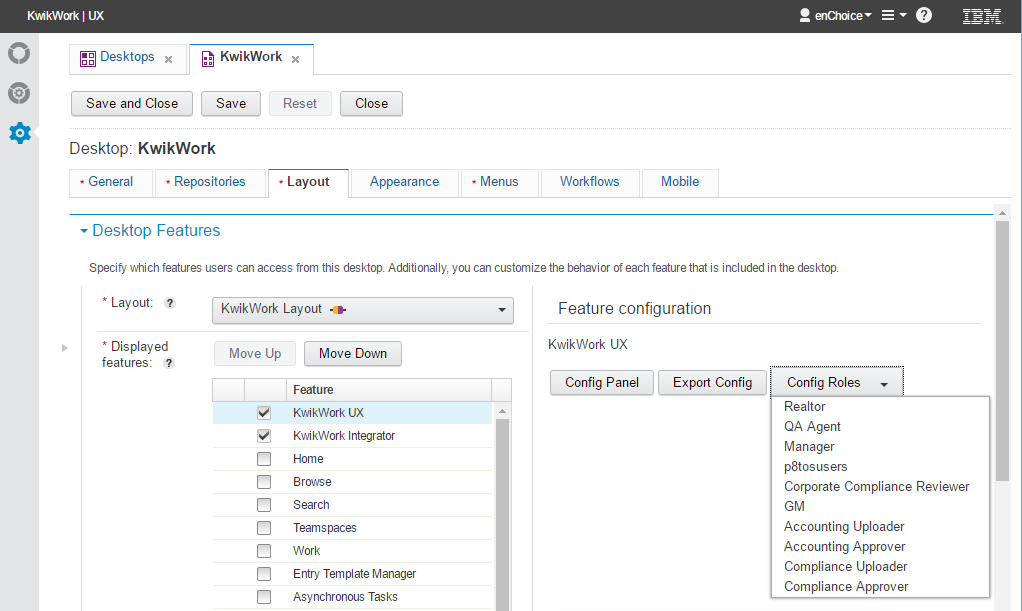
KwikWork allows administrators to configure the KwikWork UX based on the role which the user has configured in their KwikWork preferences. If a user does not have a role set in the KwikWork preferences, the KwikWork UX will load the main configuration. Role configurations should be made after first completing the main configurations which will be common to all users of the desktop. The following is a brief guide to making role specific configurations. NOTE: All KwikWork UX configurations must be made using the desktop that is being configured. Roles available are dependent on the roles configured in the application spaces that have been added to the Workflows tab of the desktop configuration.
Configuring Desktop Roles
- Navigate to the administration view then edit the desktop.
- Navigate to the layout tab and select the KwikWork UX feature.
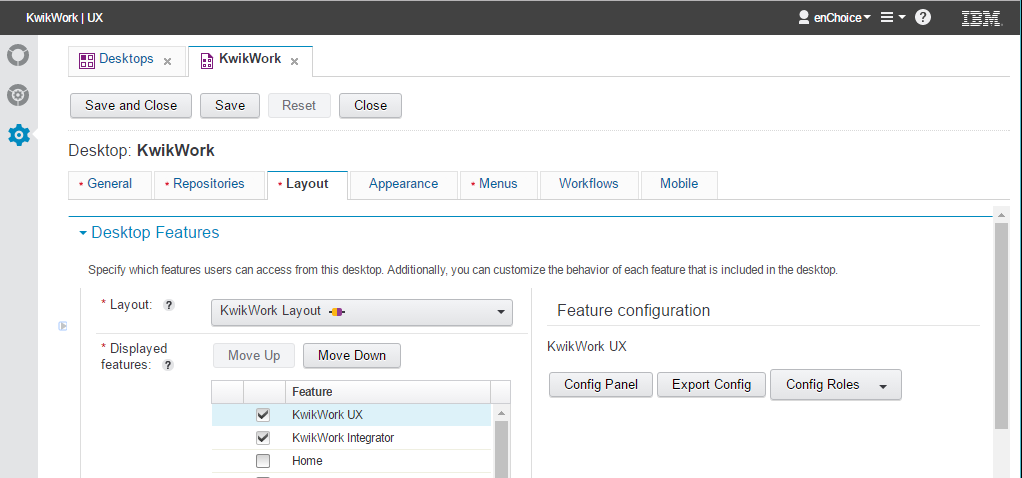
- Click the Config Roles button button then select the role that is being configured.
- Role based configurations are restricted to the following areas. Refer to the section documentation for details on configuring the features that are available.